More Effects
Explore the other video effects, each with its own input and motion.


Turn one photo into an AI Inflate Effect video
Use the AI Inflate Effect Video Generator to turn a portrait, pet photo, or product shot into a balloon transformation video. This AI inflation video generator starts with one image: watch the subject puff up like a balloon, then choose whether it floats away or deflates. Pick a preset or describe your own motion, and select the video model and output settings before generating.
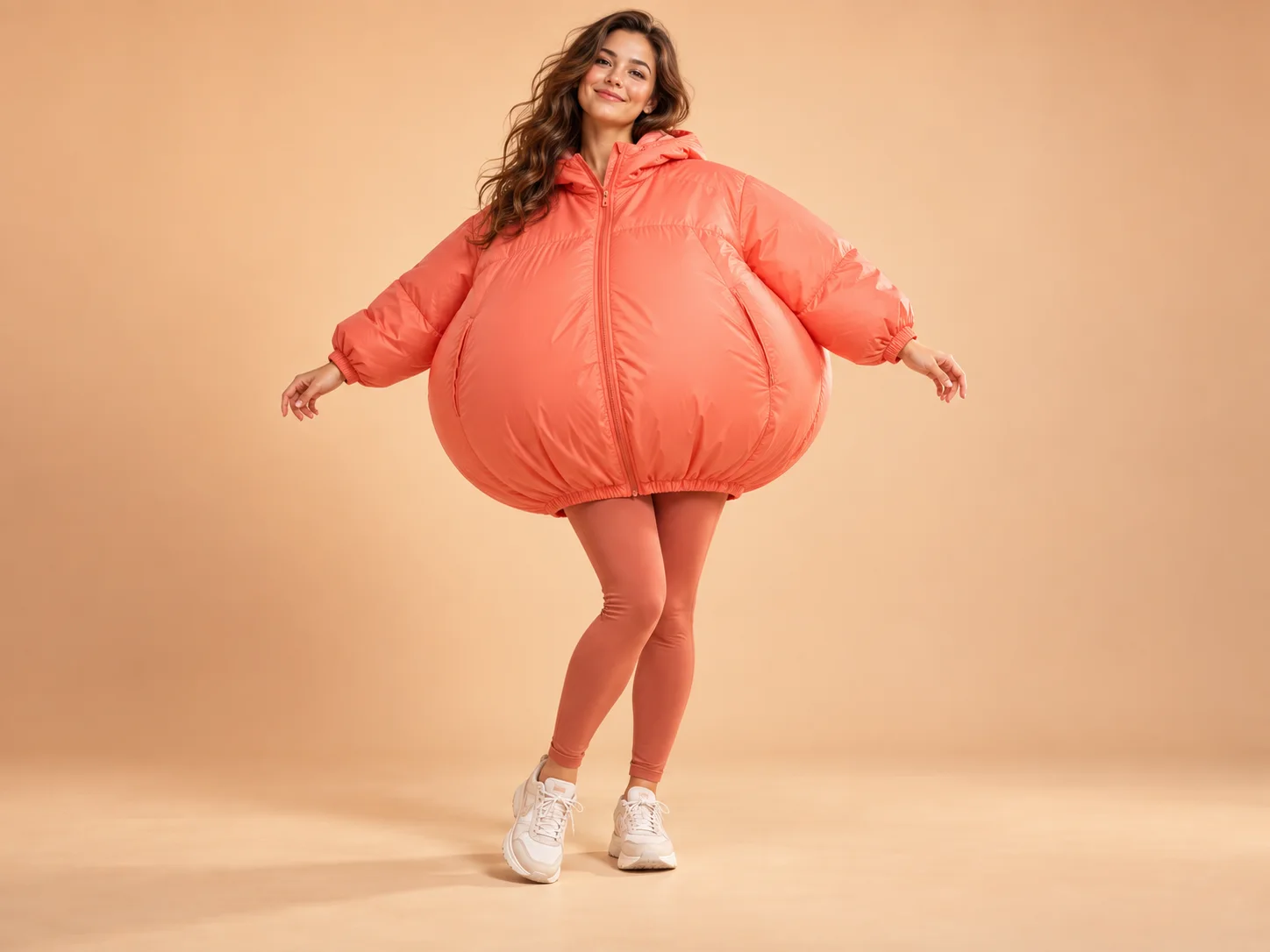
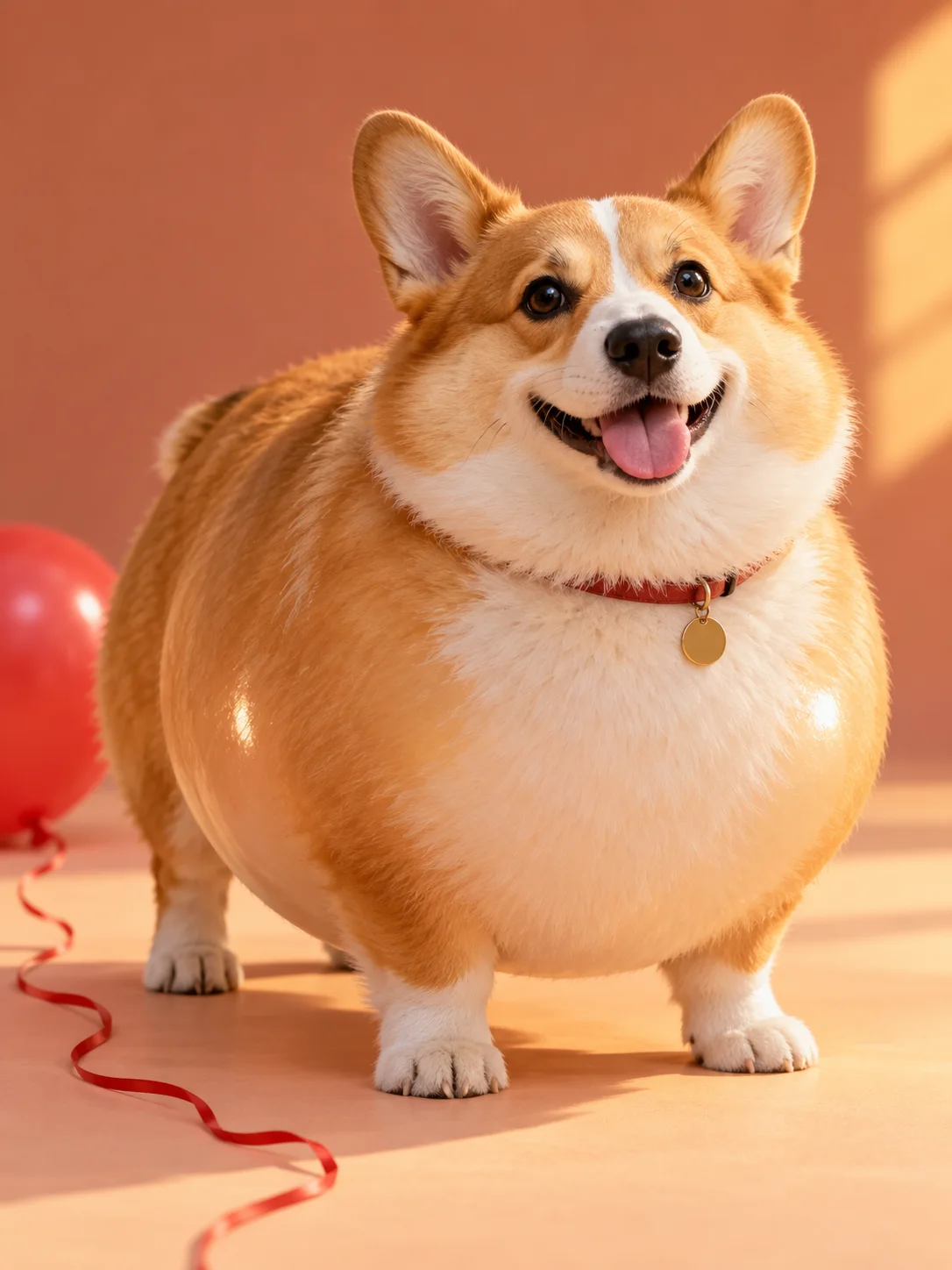
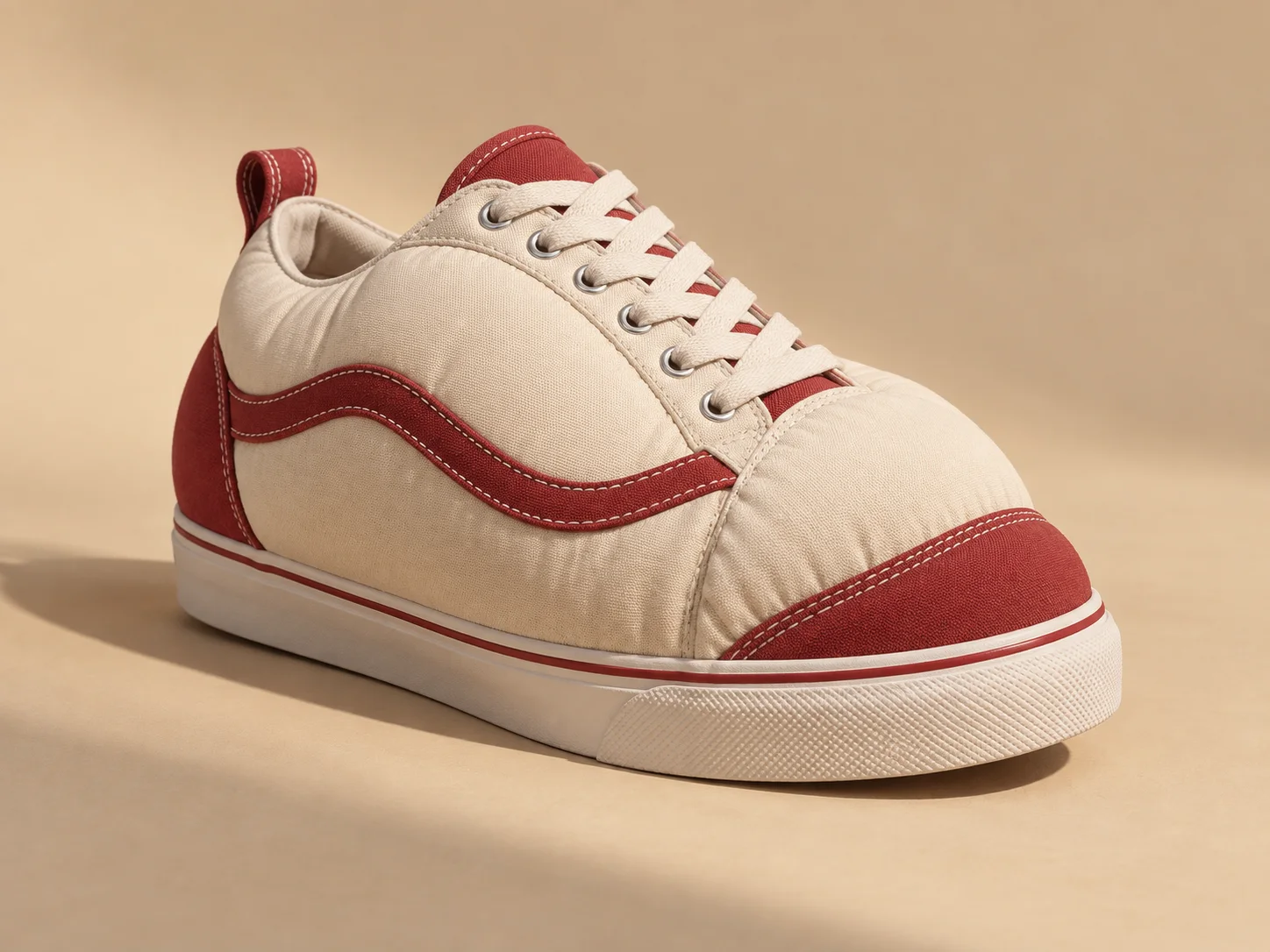
AI Inflate Effect ideas for people, pets, and products
The AI Inflate Effect Video Generator works best when the person, pet, or object stays recognizable as it expands. Start with one of these ideas for turning a photo into a balloon video, then use Custom to change the motion.
Use the AI Inflate Effect for a playful portrait transformation
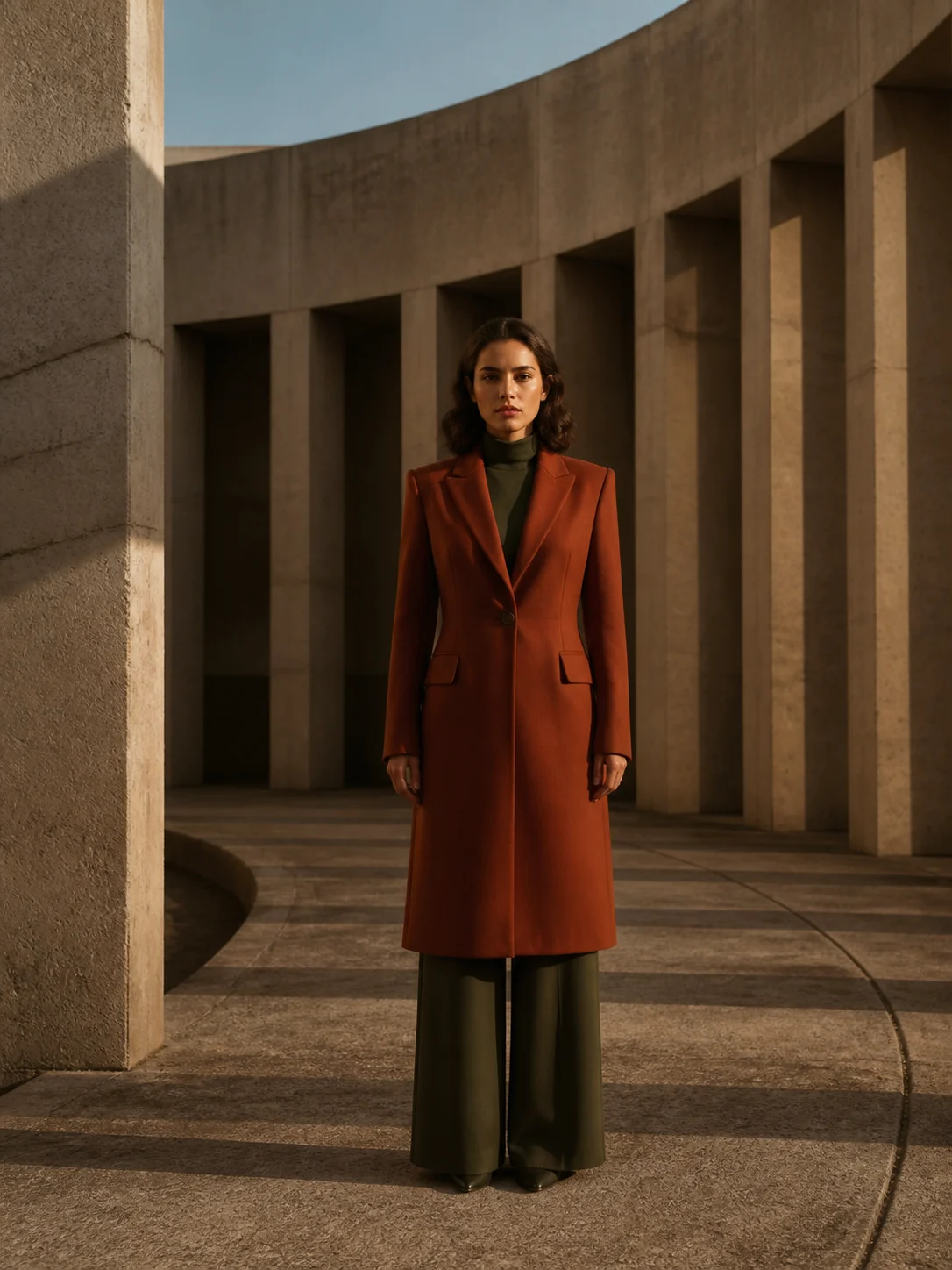
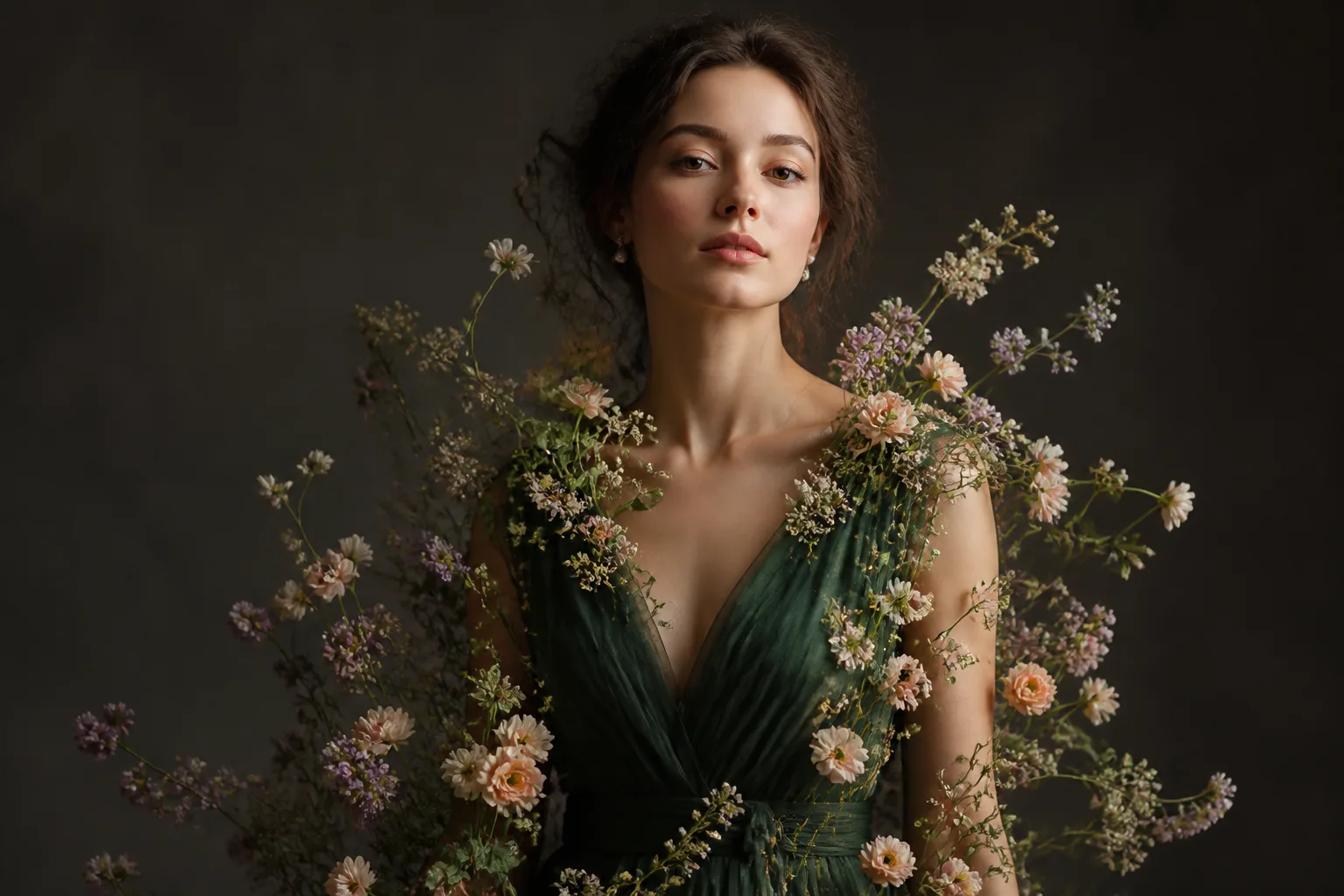
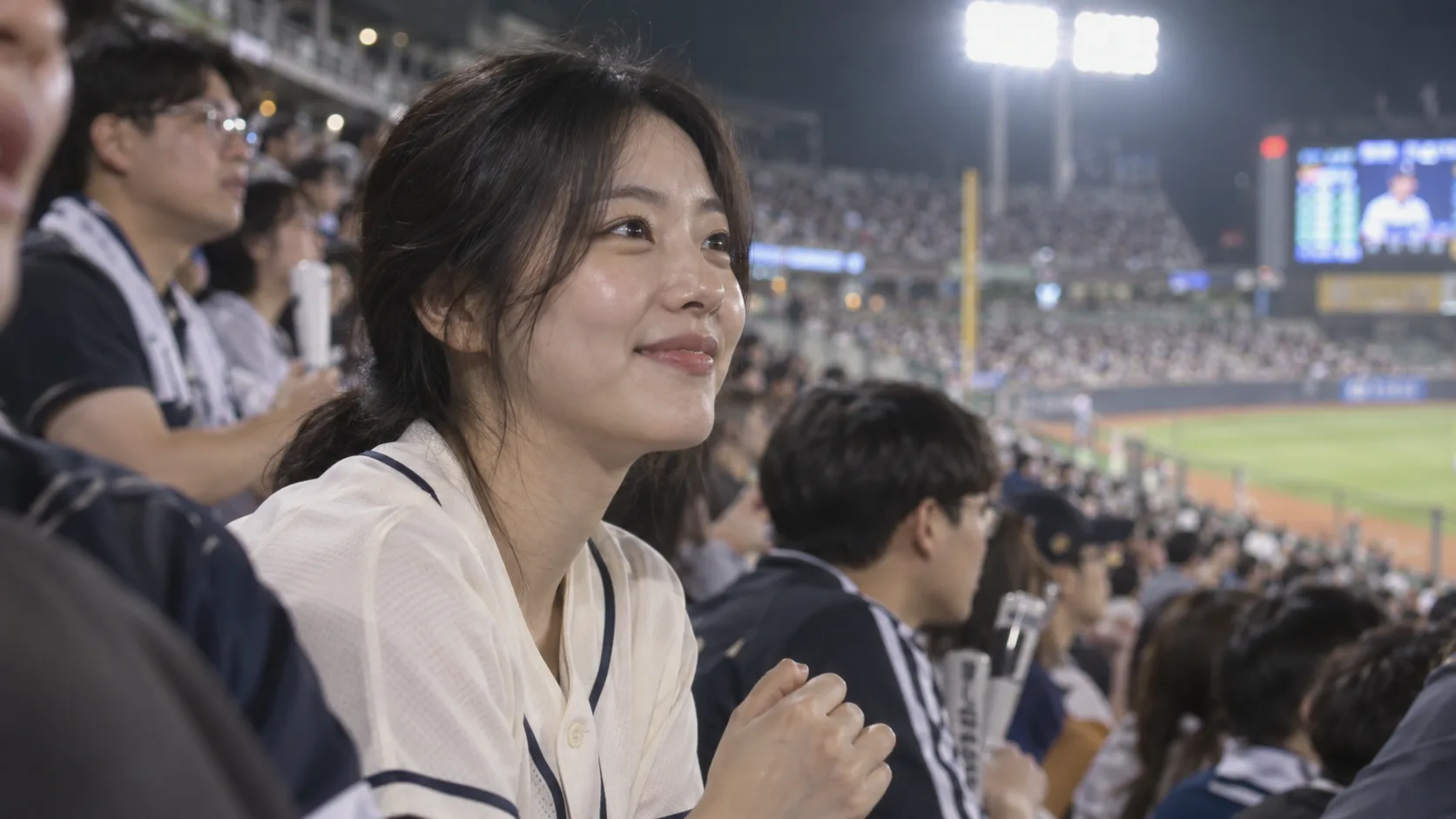
For an AI balloon effect on a person, use a clear solo portrait with the full face visible and room around the body. The AI Inflate Effect prompt asks the model to keep the person recognizable as their shape rounds out, making a playful reaction video rather than a different character.
Make a dog or cat inflate like a balloon
For an AI Inflate Effect on a pet, choose a clear dog or cat photo with visible eyes, ears, paws, and markings. Try Pet Puff for a gentle balloon effect, or Inflate & Float for a whimsical lift after the transformation.
Turn a product photo into a balloon effect video
For an AI Inflate Effect on an object, start with a recognizable sneaker, toy, or bag. Object Puff asks the model to preserve its colors, material cues, and distinctive details while the silhouette expands into a short AI inflate video.
AI Inflate Effect from photo: create a video in three steps
You do not need to animate frames by hand. The AI Inflate Effect Video Generator starts with one image and gives you controls for the photo-to-video inflation effect. These steps show how to make AI inflation videos without editing a timeline.
Upload a photo for the AI Inflate Effect
For a clear AI Inflate Effect video, pick a sharp image with one main subject, good light, and a little space around its edges. Crowded groups or heavily cropped photos make the swelling motion harder to follow.
Choose an inflate style
Choose an AI Inflate Effect template: Classic Inflate, Inflate & Float, Pet Puff, Object Puff, or Inflate & Deflate. Edit the style text or choose Custom, then select a compatible video model and settings.
Review and download your AI Inflate Effect
Generate your AI Inflate Effect clip, check that the subject stays recognizable and the balloon motion reads clearly, then download the result you want to share.
An AI balloon effect video generator with focused controls
This AI Inflate Effect Video Generator focuses on a visible transformation, with room to steer the balloon motion when the first idea needs a different finish.
See the AI Inflate Effect unfold on screen
The AI Inflate Effect preset asks the model to begin on your original photo and show the subject filling with air over time, instead of jumping straight to an already-inflated still.
Five motions and a custom direction
Start with a simple puff, a short float, or a pet or object variation. Choose Inflate & Deflate for an AI inflate and deflate video, or change the prompt if you have another balloon effect in mind.
Prompts that protect familiar details
For the AI Inflate Effect, the built-in directions ask the model to retain faces, fur patterns, clothing, product details, and background continuity. Generative video can still drift, so review each result before sharing.
Set the format for where it will play
Export your AI Inflate Effect in an aspect ratio, duration, resolution, and audio setting supported by the selected model. A vertical frame works well for Reels and Shorts when the whole subject fits.
AI Inflate Effect Video Generator FAQ
Practical answers about photo-to-inflation videos, balloon effects, source photos, and generation settings.
The AI Inflate Effect is a photo-to-video transformation in which the subject appears to fill with air and become rounded like a balloon. This page creates that animated change from one uploaded image; it is not a static photo enlargement tool.
On this page, yes. Both names describe the same balloon-like inflation of a person, pet, or object in a short video. The effect does not add an unrelated hot-air balloon to the scene.
Upload one photo to the AI inflate video generator, select an inflate style, and adjust the prompt if needed. Choose a video model and available output settings, generate, then review and download the finished clip.
For an AI balloon effect from a photo, use a sharp, well-lit image with one obvious subject and visible space around it. A simple background helps the shape change read clearly. A cropped face, heavy blur, or several overlapping people can make the result less predictable.
Yes. The AI Inflate Effect Video Generator includes preset directions for portraits, pets, and objects. Upload media you have the right to use, especially when another person appears in the source photo.
Yes. The AI Inflate Effect includes Inflate & Deflate to ask for a return toward the starting shape, or Inflate & Float for a short upward drift instead. These are prompt directions, so the exact motion can vary by source image and video model.
Yes. Edit the AI Inflate Effect style text or switch to Custom and describe the pace, degree of inflation, surface look, background, and final motion you want. Keep the direction focused on one main subject for a clearer result.
The built-in prompt asks the model to preserve identity, markings, clothing, and product details, but no generative video model can guarantee a perfect match in every frame. A clean source photo and restrained motion usually give it a better starting point.
For a vertical AI Inflate Effect video, select a vertical aspect ratio when your chosen model offers one. Leave room around the subject in the uploaded image so the inflated shape remains inside the frame.
The AI Inflate Effect Video Generator uses credits. The form shows the current cost for the model and settings you select before you generate; check the pricing page for available plans.
No. This tool makes an animated balloon-style transformation from a photo. It does not enlarge image resolution or create inflated lettering in a design app.
Start with the uploaded image and describe one clear change: gradually inflate the subject like a soft balloon while keeping its face, colors, and background recognizable. Add whether it should wobble, float, or deflate. The preset supplies the basic motion; Custom lets you write your own AI inflate effect prompt.
Yes. This browser-based AI balloon effect video generator starts from one photo and does not require manual keyframes or an editing timeline. For an AI Inflate Effect online, upload the image, pick a style and available model settings, then review the credit cost before generating.
Create an AI Inflate Effect video
Use the AI Inflate Effect Video Generator online with one clear photo. Choose an inflate style, then review and download your balloon effect video.