
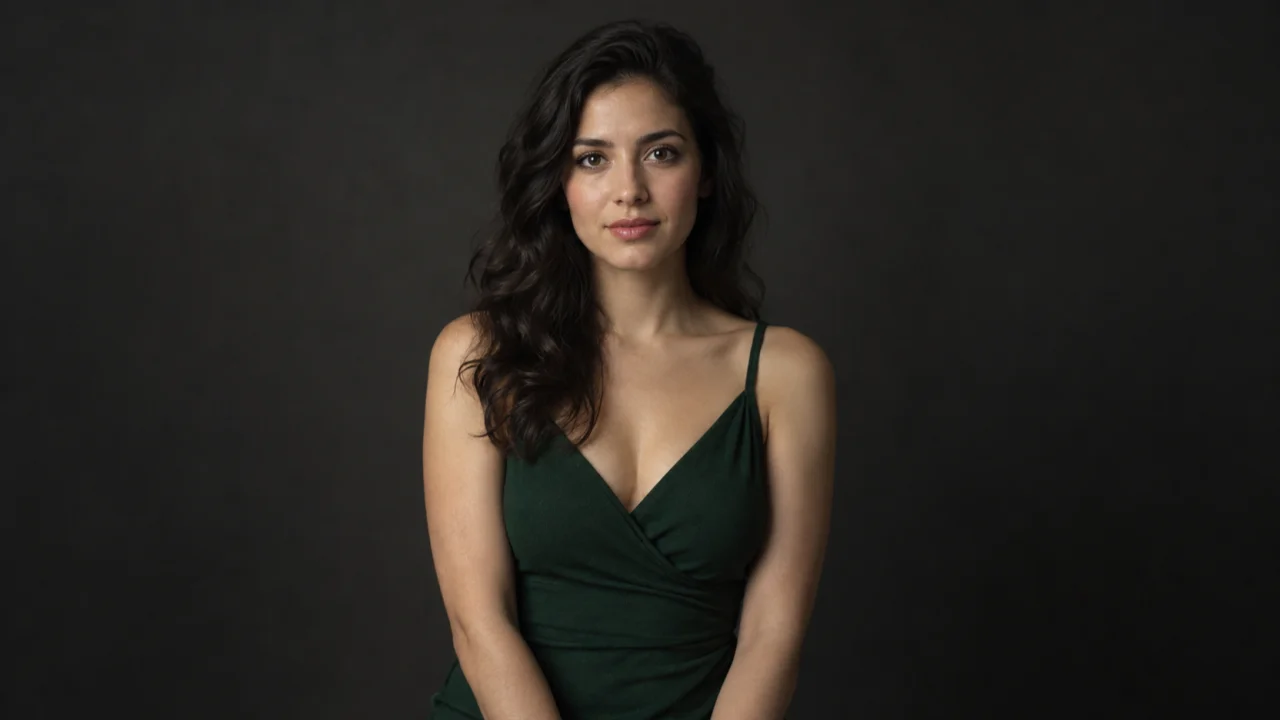
Made from this one photo
More Effects
Explore the other video effects, each with its own input and motion.
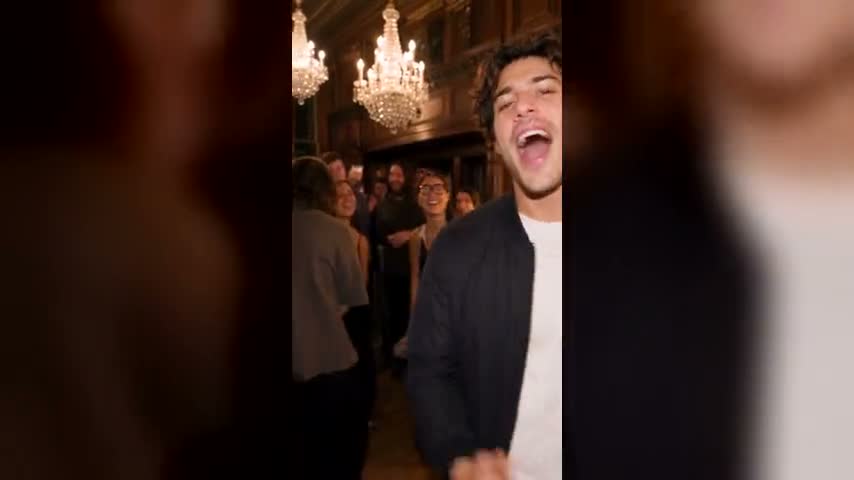

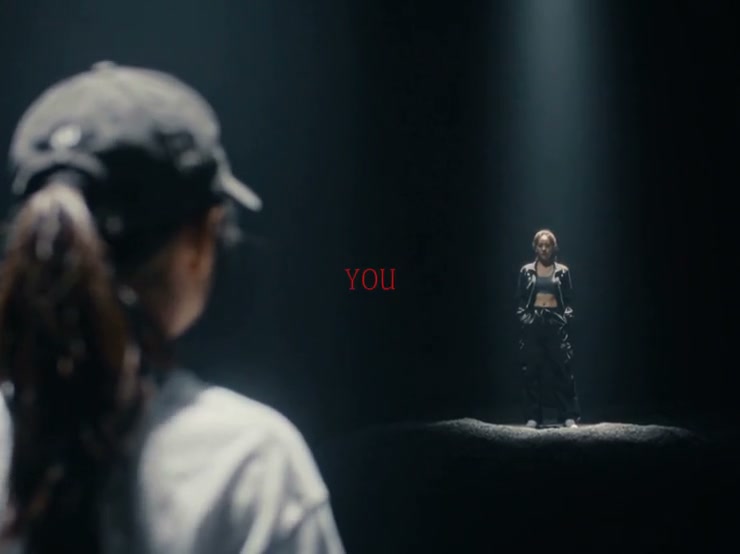

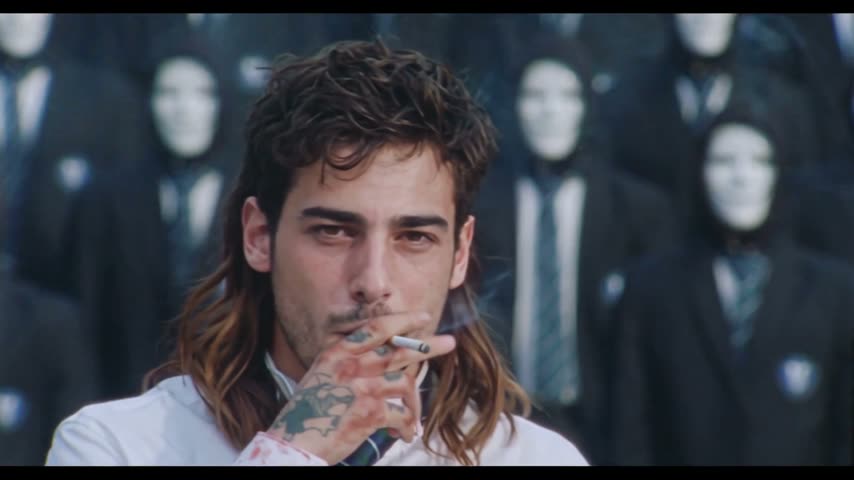
Turn one photo into a living floral time-lapse
The AI Bloom Effect Video Generator turns a still image into a cinematic flower-growth sequence. Upload a portrait, product, building or everyday scene, choose a botanical style, and watch stems emerge, buds form and flowers open around the original subject. Use a preset for a fast photo-to-bloom video or direct your own image-to-flower blooming video with Custom.
A flower bloom AI video effect for every kind of image
The AI Bloom Effect Video Generator reads the surfaces, scale and depth already present in your picture. That makes the same floral growth effect useful for architecture, products, portraits and ordinary street photography without replacing what made the source image distinctive.
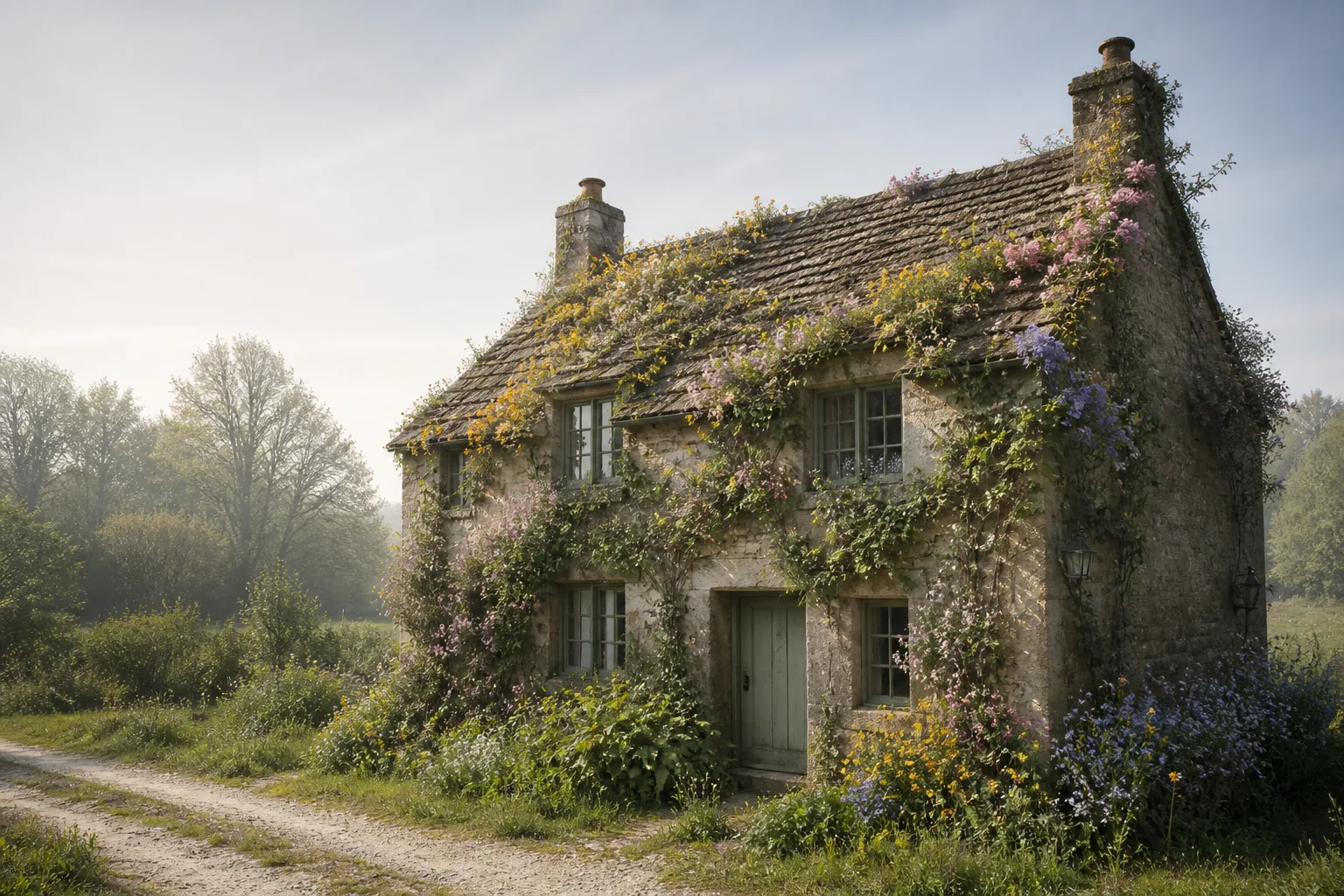
Let a building come alive with climbing flowers
Turn a cottage, storefront or interior into an organic time-lapse as vines trace edges and flowers open across believable contact points. The floral bloom video generator keeps walls, windows and perspective stable while the garden develops around them.
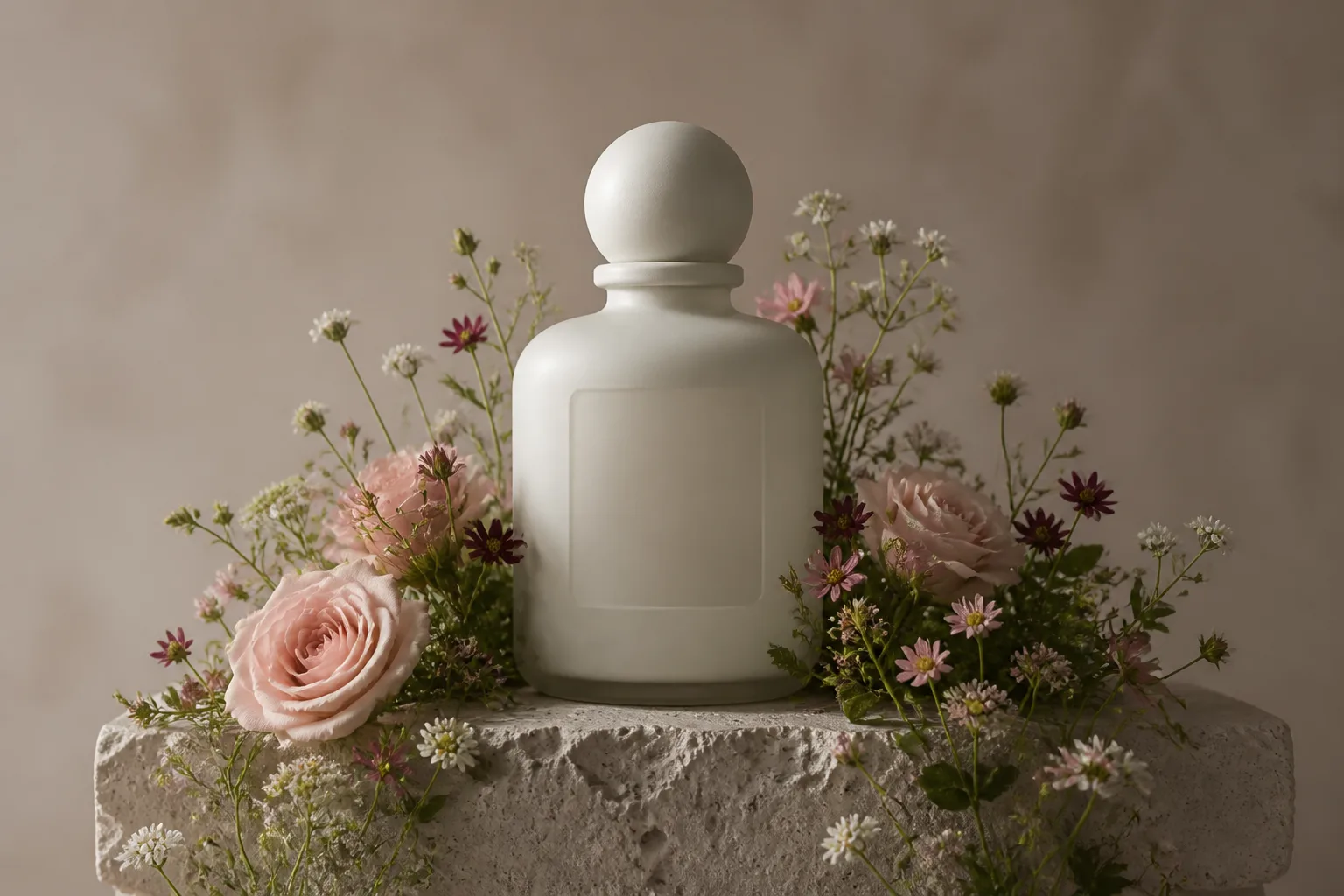
Build a botanical product reveal from one hero shot
Grow roses, orchids or delicate spring flowers around cosmetics, bottles, jewelry and packaged products. The photo-to-bloom video adds campaign motion while its prompt guards help keep the product shape, material and label area readable.
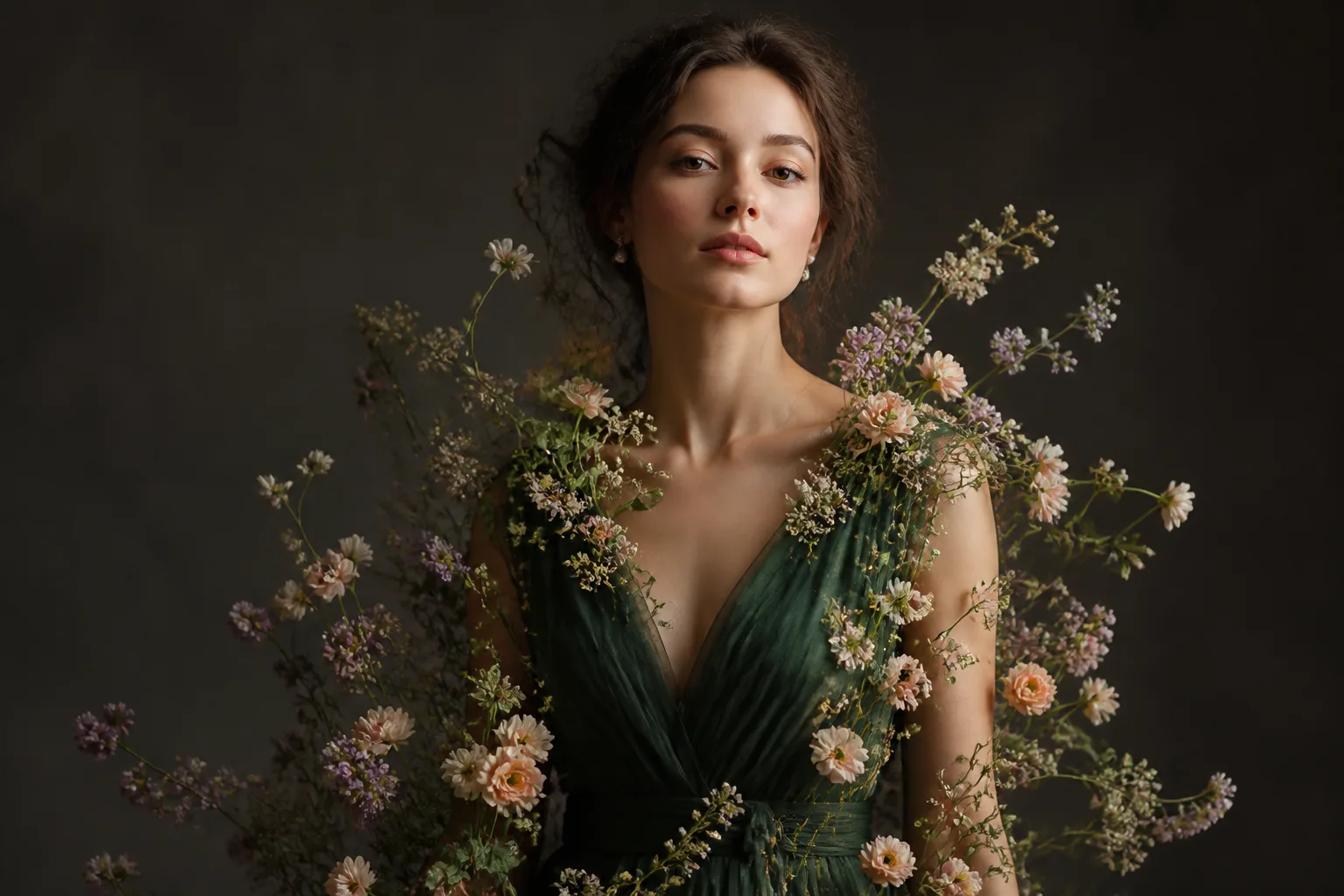
Frame a portrait without covering the person
Create an editorial blooming flower video effect that grows along the background, clothing edges or foreground while keeping the face and hands clear. Pastel Spring works for soft beauty content; Enchanted Bloom adds restrained fantasy light.
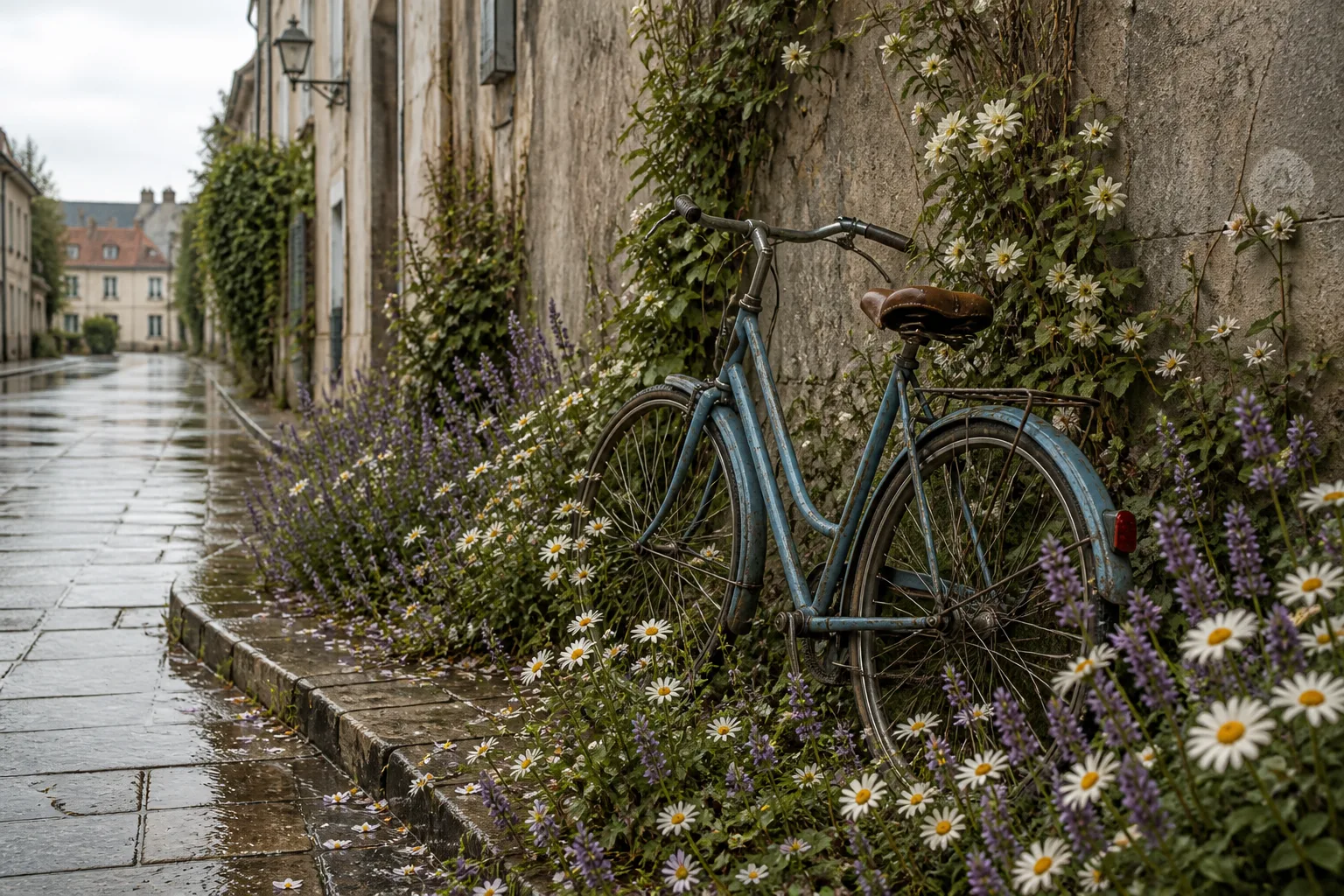
Transform familiar objects into shareable bloom magic
A bicycle, desk, doorway or city corner can become the anchor for a short AI flower growth animation. Choose 9:16 for TikTok and Reels, or keep the source ratio for a seamless before-and-after post.
How to make an AI Bloom Effect video
The AI Bloom Effect Video Generator turns a still image into a controlled flower-growth animation in three straightforward steps. The presets supply the detailed prompting, while the visible controls remain yours.
Upload one clear source image
Choose a portrait, product photo, building or scene with a strong focal subject. Sharp edges and visible surfaces help the AI bloom video generator decide where roots, vines, stems and flowers should grow.
Choose a bloom style and video model
Select Natural Wildflowers, Rose Takeover, Tropical Bloom, Pastel Spring or Enchanted Bloom. Seedance 2.5 is recommended by default, with Wan, Seedance 2, Seedance 2 Fast and HappyHorse available to compare.
Generate, review and download
Set the aspect ratio, resolution, duration and audio preference, then generate. Check that flowers remain anchored and the source subject stays consistent before downloading the finished watermark-free floral bloom video.
Why use our AI Bloom Effect Video Generator
This is a focused image-to-video workflow for flower growth, not a generic editor with a decorative filter. The AI Bloom Effect Video Generator combines useful presets, selectable models and continuity rules in one place.
Growth, not a static flower overlay
Each preset begins on the unchanged image, then builds stems, leaves, buds and petals in a continuous botanical time-lapse. Flowers emerge from surfaces and settle naturally instead of popping into the frame.
Five bloom prompts plus Custom
Ready-made prompts cover wildflowers, roses, tropical plants, pastel spring blossoms and enchanted florals. Custom leaves the creative direction to you and adds only broad continuity and output-quality constraints.
Five selectable video models
Start with Seedance 2.5 for detail, use Wan 3.0 for a strong quality-to-credit balance, choose Seedance Fast for drafts, or try HappyHorse for an alternative rendering style.
Source continuity and clear subjects
Built-in prompt guards preserve faces, clothing, product design, architecture, geometry and color. They also ask the model to keep faces, hands, labels and other important details free of flowers.
Every major social aspect ratio
Keep the adaptive source framing or choose vertical, square, portrait and widescreen formats supported by the selected model. Make one bloom concept work across Reels, TikTok, YouTube and campaign feeds.
HD, watermark-free results
Draft at a practical setting, compare the result, then render the strongest AI Bloom Effect at up to 1080p. Finished generations download without a baked-in Flowlio watermark.
AI Bloom Effect Video Generator FAQ
Answers about creating floral growth, bloom magic and image-to-flower videos from a single picture.
An AI Bloom Effect Video Generator is an image-to-video tool that animates believable plant growth around a still picture. It can show stems emerging, leaves unfolding, buds forming and flowers opening while the original person, product, object or place remains recognizable.
No. In photography and post-production, bloom can mean a soft glow around bright highlights. This page targets the popular floral bloom video effect: flowers visibly sprout, grow and open across an image. It is an AI flower-growth animation rather than a highlight-glow filter.
Upload one photo, choose a bloom style and select a model. The generator combines your image with a prompt that defines the flower growth, look and source-continuity rules. Set the format and length, generate, then download the result you prefer.
Use a sharp, well-lit image with one clear subject and some open surfaces or edges. A product on a table, a person against a visible background, or a building with readable walls gives the model convincing places to anchor plants. Heavy blur and crowded collages are less reliable.
Yes. Choose Custom and write the species, color, starting points, direction, density, growth speed, camera and lighting you want. Your text remains the primary prompt; the system only adds general constraints for source preservation, grounded growth and temporal consistency.
The built-in prompts explicitly ask the model to keep faces, hands, labels and key product details unobstructed, but generative video can still drift. Use a clear source and mention any protected area in Custom when precise placement matters.
Seedance 2.5 is the recommended starting point when botanical detail and source consistency matter most. Wan 3.0 balances quality and credits, Seedance 2 Fast is useful for quick drafts, and HappyHorse provides another visual interpretation. You can switch models before generating.
Yes. Select 9:16 when the chosen model supports it, or use adaptive framing to follow the uploaded image. For vertical results, keep the important subject near the center and leave some surrounding space for the flowers to grow into.
Audio starts off so you can focus on the visual transformation, but the audio control remains available. Models with native audio support can add ambience when enabled; you can also generate a silent clip and add music later in your editor.
You can use your generations for social content, campaigns and client work when you own or have permission to use the source image, depicted likenesses, products and trademarks. Review the selected model's terms and disclose synthetic media where required.
Create your AI Bloom Effect video
Upload one image, choose a flower style and let the AI Bloom Effect Video Generator grow a grounded botanical composition around your subject.