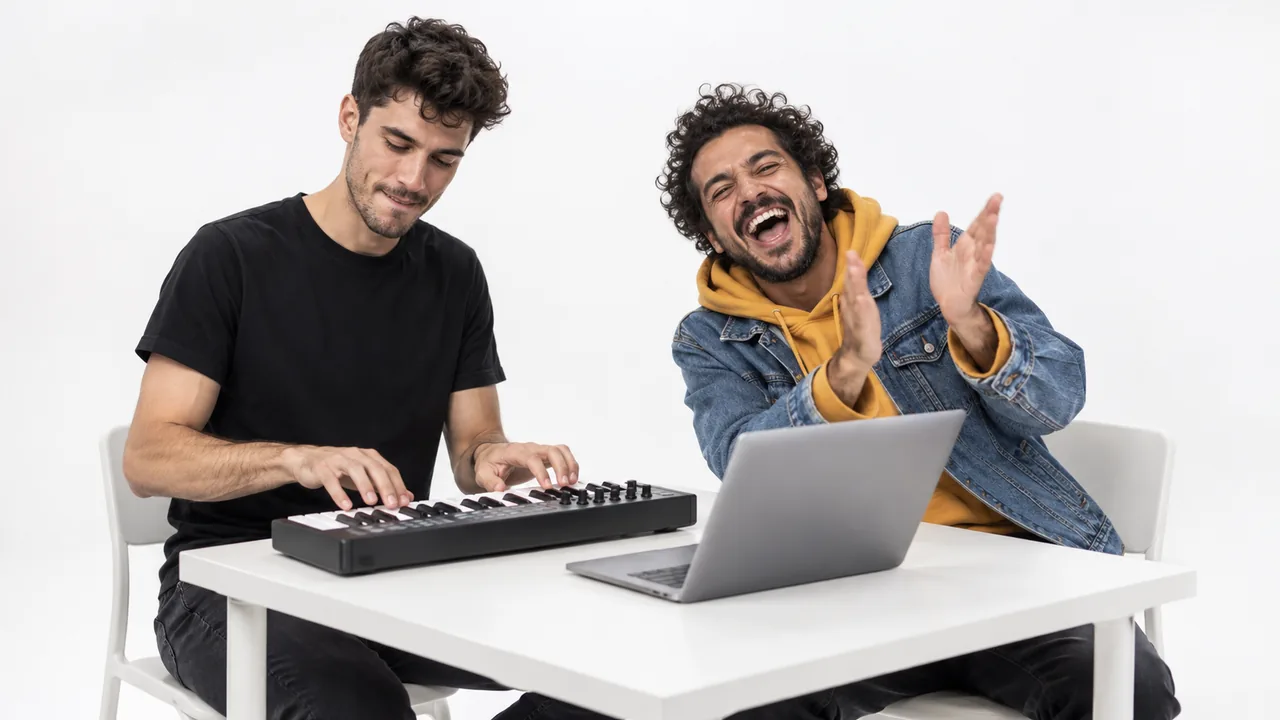
To make an Alors on Danse AI video, you need two photos: one of the person who plays the little keyboard, and one of the partner who hypes them up. An AI tool then drops both of them into the famous white-studio clip of Stromae and Jamel Debbouze, where one taps out "Alors on Danse" next to a laptop while the other claps, laughs, points and leans right into the lens. You don't film anything.
You'll also see it called the Stromae Jamel AI trend. Below you'll find the two-photo shortcut, a build-it-yourself route with a reference-to-video model, the posting steps for TikTok, and a fix for each mistake we kept running into.
Everything here comes from building our own Alors on Danse AI video generator in October 2026 and running a lot of test pairs through it. The lesson that shaped everything: this is a two-person trend, and most AI video tools are built for one. Nearly every failure below, from swapped roles to two faces melting into one, comes from that gap.
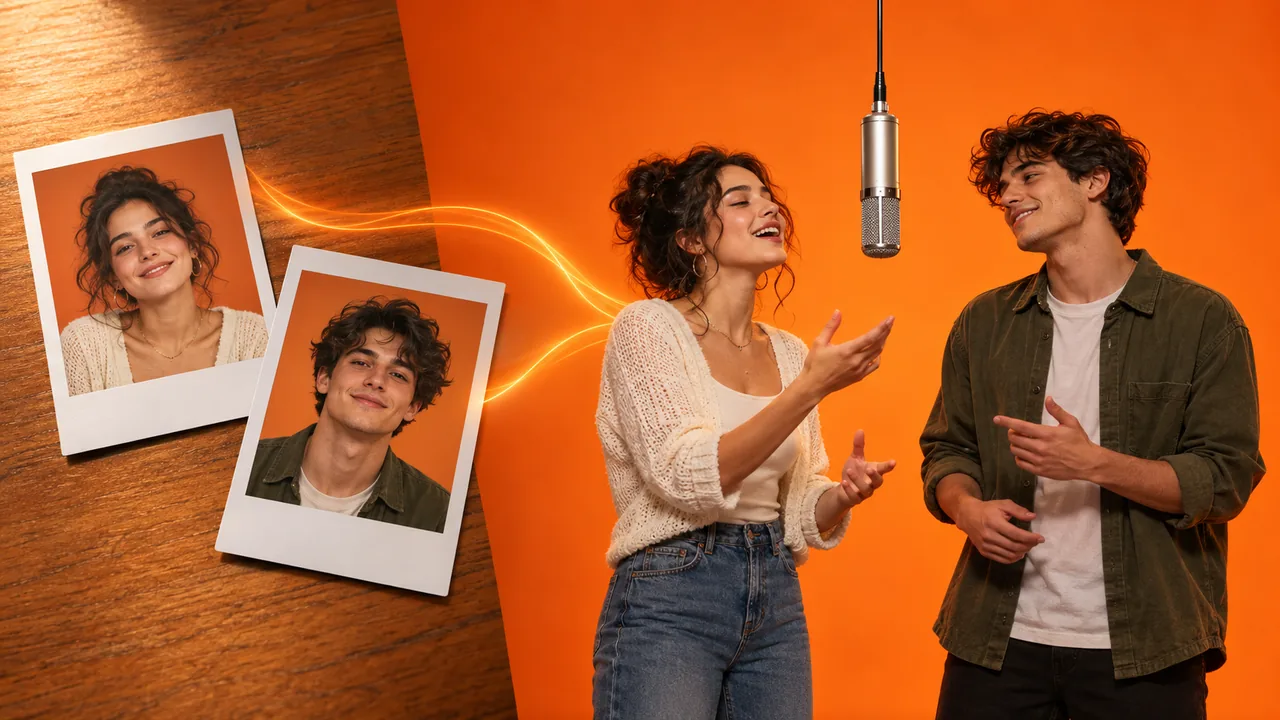
Two test photos, one keyboard player and one hype partner, recast as an Alors on Danse AI video in the white studio.
How to make an Alors on Danse AI video: quick steps
- Pick two photos, one person each: the keyboard player and the hype partner.
- Upload them to the Alors on Danse AI video generator: keyboard player in the first slot, partner in the second.
- Choose 480p, 720p or 1080p and hit Generate. You'll see the price in credits on the button before anything is charged.
- Download the MP4. It runs about 10 seconds in 16:9, with the song already on it.
- Post it to TikTok, Reels or Shorts, cropped to vertical or kept widescreen.
The sections below go through these in detail, and then show how to do the whole thing by hand.
Before you start: cast the two roles
The sketch has two very different jobs, so decide who does what before you pick photos.
- The keyboard player (Stromae's part) mostly stays at the table, eyes on the keys, nodding to the beat. It's the calm role.
- The partner (Jamel's part) does most of the moving: clapping on the beat, pointing at the laptop like he wrote the track, laughing, and pushing his face toward the camera.
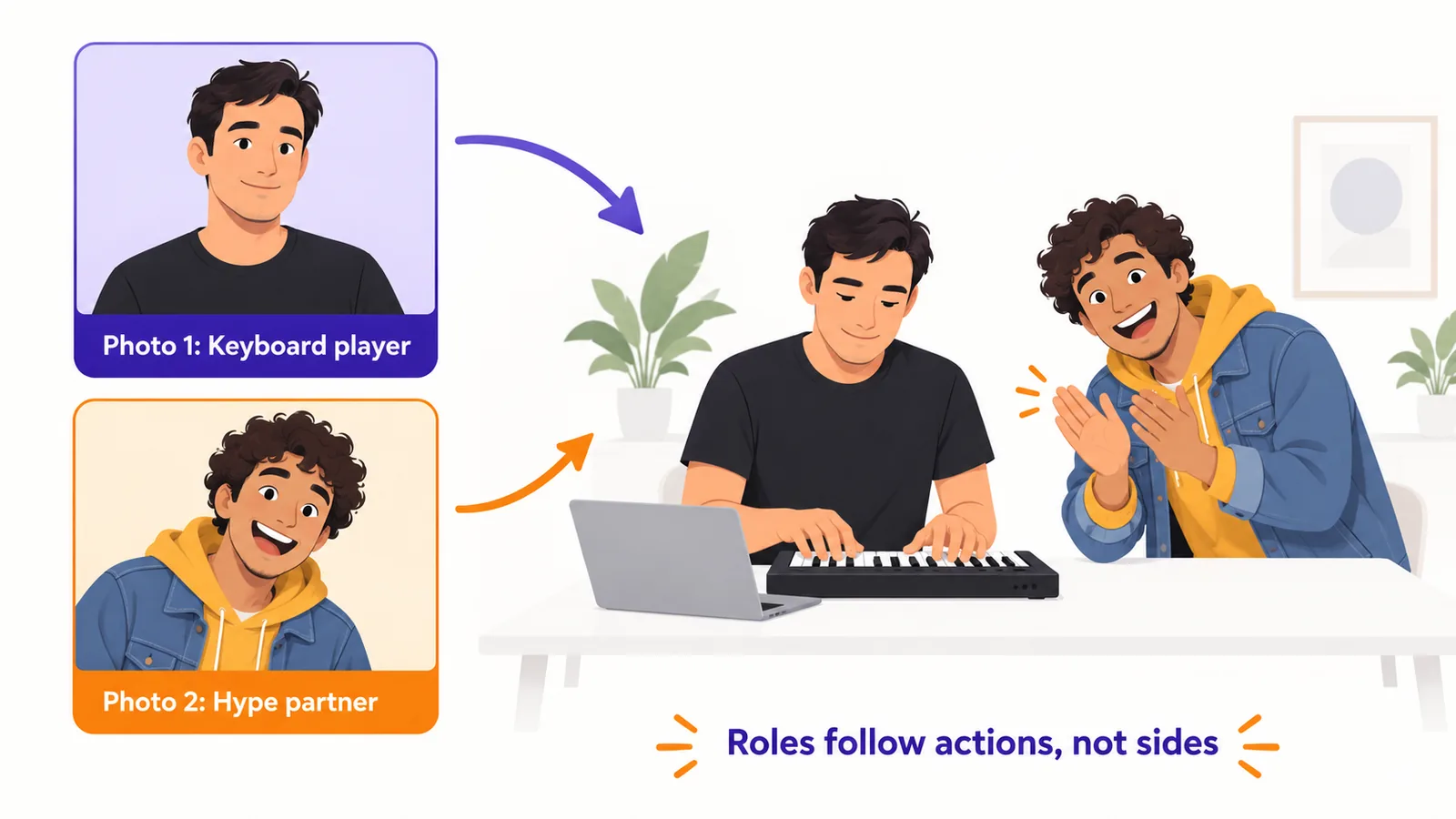
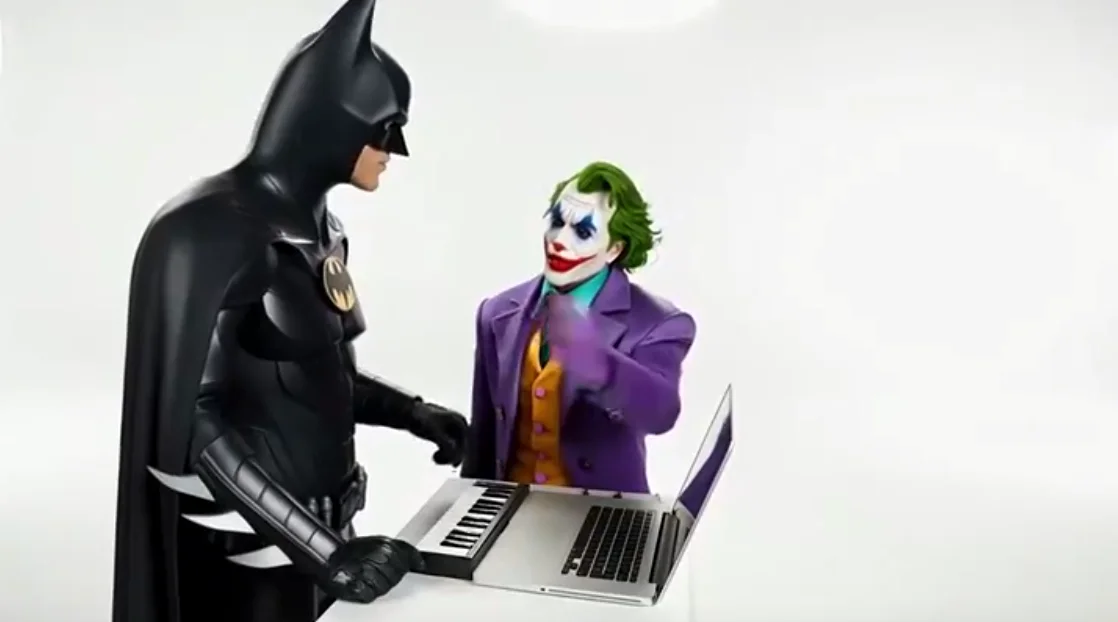
Put the calmer person on the keyboard and the louder one in the partner slot. The joke lands best when the pair clashes, because the whole bit is one person grabbing credit for the other's hit. Heroes and villains, a teacher and a student, two music legends, you and your best friend: all of these work.
Choose photos that keep both faces apart
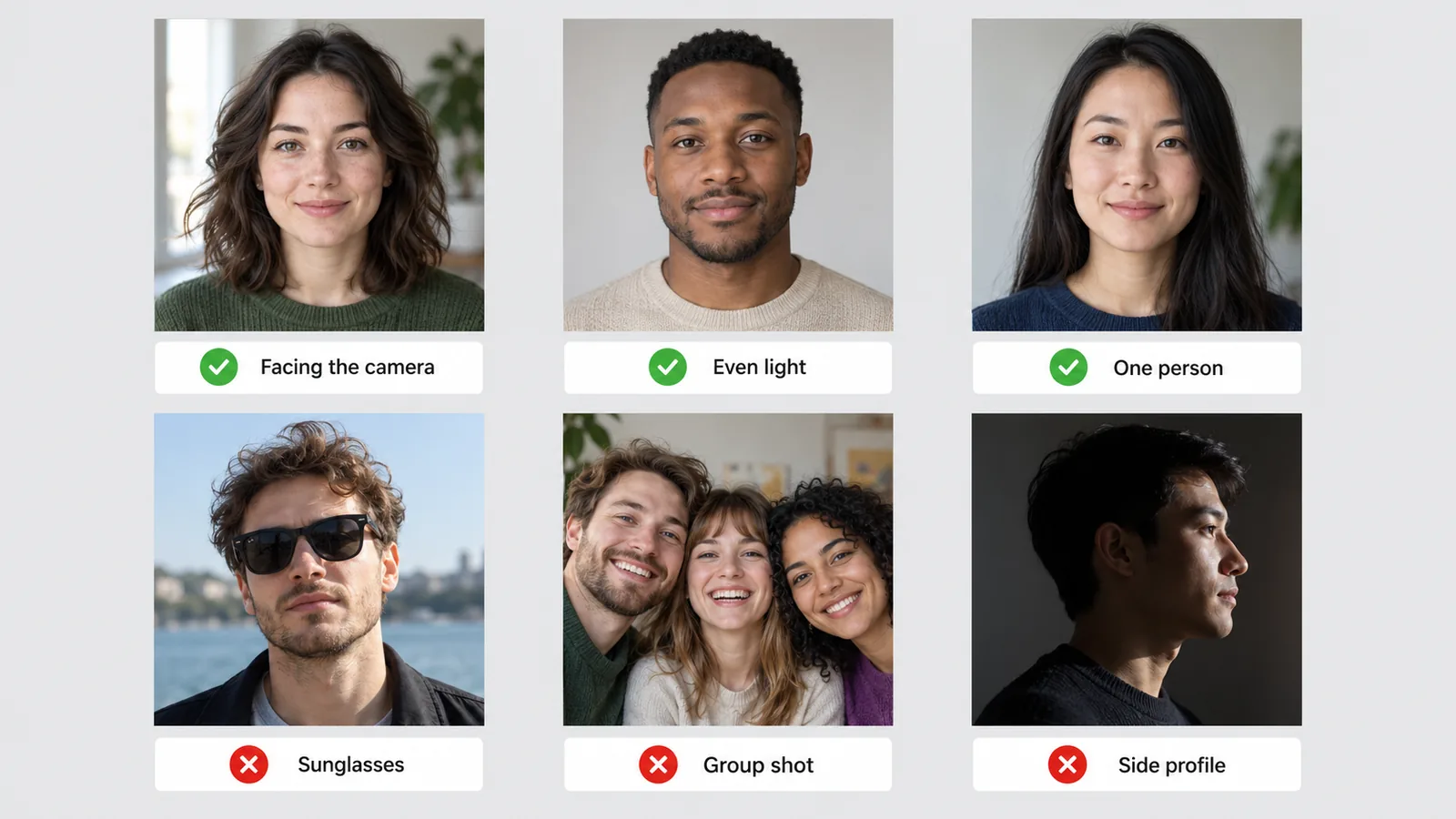
The photos decide most of the result. Here's what works:
- One person per photo. Crop group shots down to one face.
- Facing the camera, evenly lit. The partner's close-up toward the lens shows every detail of the face.
- Nothing over the face. No sunglasses, masks, hands or heavy filters.
- The two photos don't need to match. A selfie of you and an old photo of a friend from a different phone is fine.
- Make them look different if you can. Two people with the same hair, outfit and angle are the easiest for an AI to blend. Different clothes or a different framing help each face stay its own.
Why the Stromae Jamel AI clip is harder than it looks
Most viral AI video effects have one star. This one has two people sharing a small table, and they don't stay in neat lanes: the partner leans across, moves into the close-up and walks off across the studio at the end.
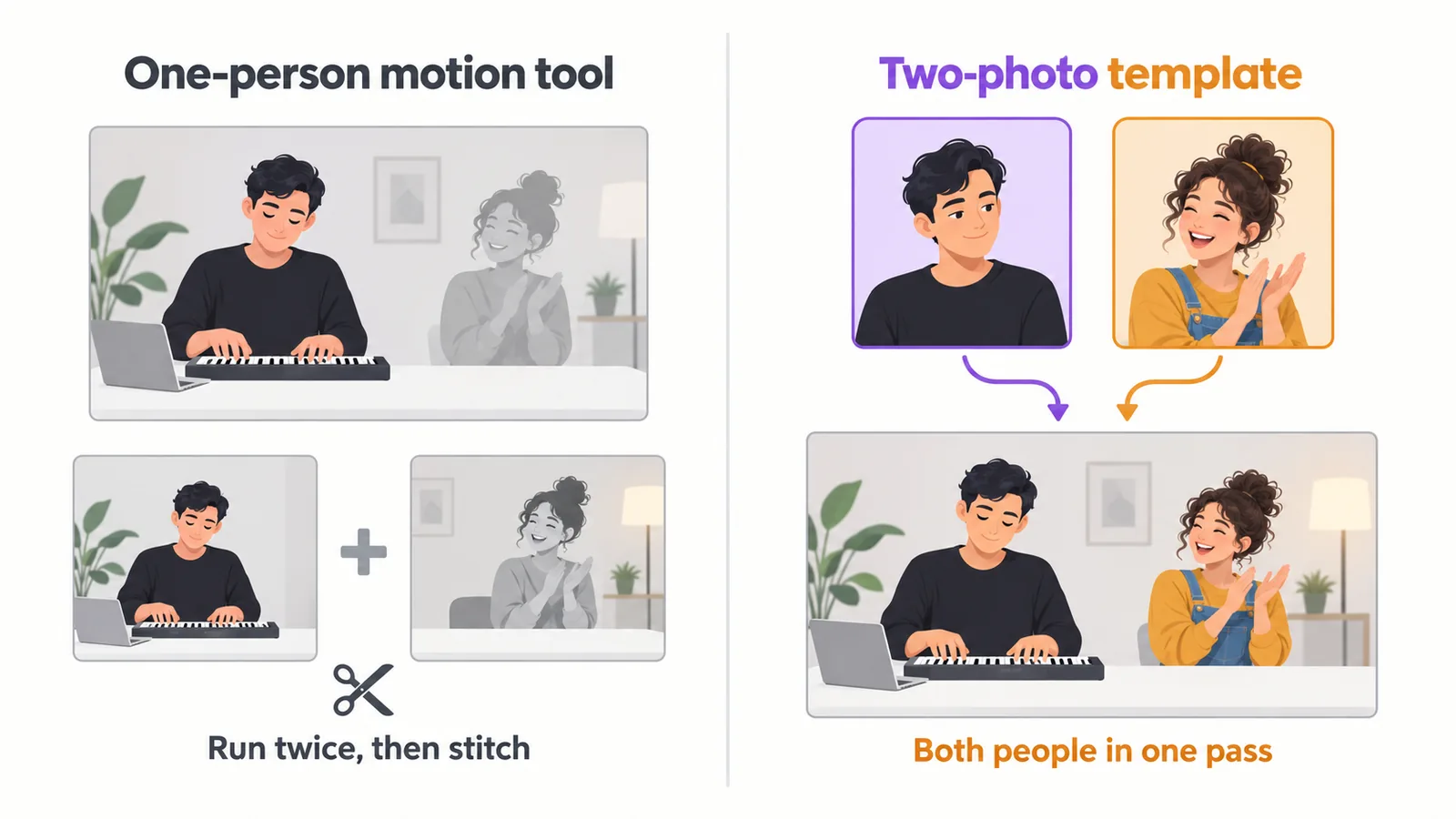
That's a problem for motion-transfer tools. Kling's own Motion Control guide says that when a motion reference has two or more people, the tool uses only the motion of the person taking up the most space in the frame. It also asks for one continuous shot with no cuts. So a typical DIY version means running the tool once per person on a cropped clip and stitching the two results back together in an editor.
The other catch is roles. If you tell a model "the person on the left plays the keyboard", it can go wrong the moment the two cross over. When we built our template, we gave each role by what the person does, not by where they stand: Photo 1 is whoever plays the keyboard, Photo 2 is whoever claps and leans in, wherever they are in the frame. That one change did more to stop mid-clip role swaps than anything else we tried.
Method 1: Make an Alors on Danse AI video from two photos (fastest)
A dedicated template already holds the white studio, the laptop and keyboard, every move, the camera and the beat. You only choose who plays which part. Here's how it works in our Alors on Danse AI video generator:
- Upload the keyboard player's photo in the first slot and the partner's photo in the second. The upload cards name each role, so you can't mix them up.
- Set the resolution. That's the only setting; the model, the 10-second length and the widescreen frame are fixed for this trend. Prices are 500 credits at 480p, 800 at 720p and 1,250 at 1080p, shown on the Generate button. A cheap first test at 480p tells you whether a pair works before you pay for 1080p.
- Give it a few minutes. Closing the tab is fine: the result lands in My Creations either way.
- Save the MP4. "Alors on Danse" is already synced to it, so the taps on the keys and the claps hit the beat.
Under the hood it's reference-to-video: the original sketch is the reference, and both people are generated in one pass from your photos, with each photo locked to its role. Nothing is pasted over a stock clip, so both of you actually move, laugh and react. We tested several video models on this exact clip and picked the one that kept two faces apart most reliably. Every run is a fresh take, so if you don't love the first one, generate again with the same photos.
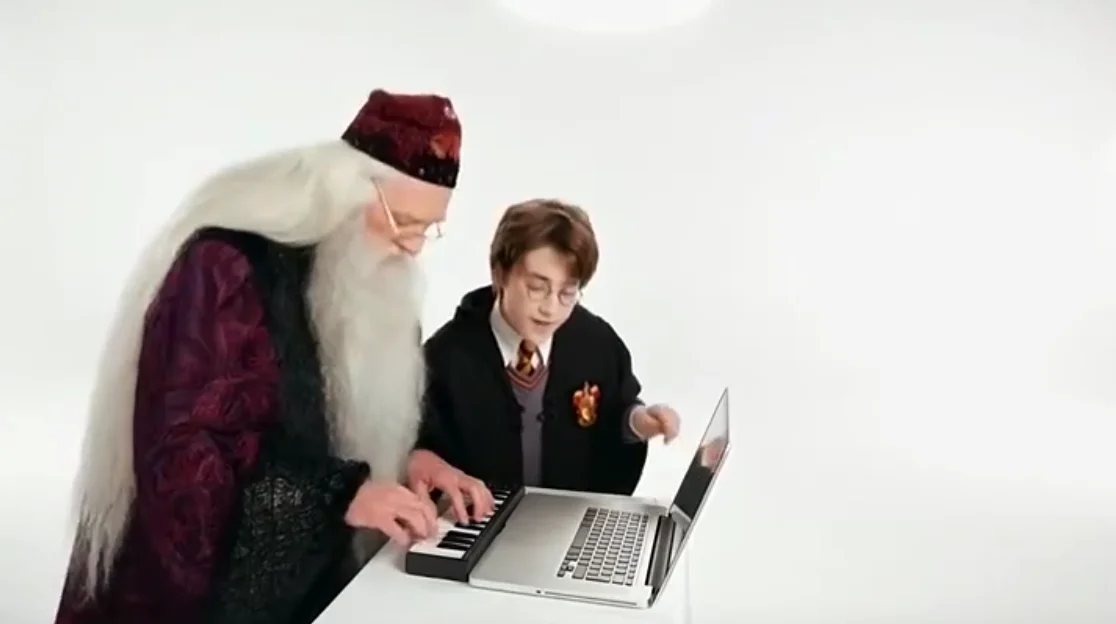
Method 2: Build an Alors on Danse AI video yourself
Prefer to control every detail, or curious how the template works? A general reference-to-video model can do it too. Seedance, Kling and Wan all have modes that copy movement from a reference clip. This is the outline we'd follow.
Step 1: Prepare the reference clip
Find the original sketch and trim it to the part you want, about 10 seconds. Mute it: the track goes back on at the very end, because music a video model invents on its own drifts off the rhythm.
Check your model's limits before you start. Kling's Motion Control accepts reference clips of 3 to 30 seconds, according to its guide. Other reference-to-video models set their own limits, often shorter, so check the docs of the one you use. A 10-second clip fits most of them.
Step 2: Write the roles into the prompt
If your model takes one reference video plus several images in a single run, give each input exactly one job, and assign the roles by action. A prompt skeleton:
Recast the reference clip with the two uploaded photos.

Image 1 = the person playing the compact keyboard at the table.
Image 2 = the expressive partner beside them who claps, points,
laughs and leans toward the lens.
Assign the roles by what each person does in the reference,
never by left or right screen position.

Replace each original performer completely. Keep each person's
face, hair, skin tone, build and outfit from their own photo in
every shot, close-ups included.

Follow the reference's action order, timing and camera exactly.
Keep the bright white studio, the table, the laptop and the
keyboard.

Exactly two people. No original faces, no role swapping, no face
blending, no extra fingers, no changing props.
The exact tag format varies: some models want @Image1, others plain Image 1. Check the model's docs.
Step 3: If your tool only handles one person
With a one-person motion tool, crop the reference twice, once around each performer, and run each photo against its own crop. Then put the two results side by side in an editor. It works, but it's the most fiddly route, and the shared moments, like the two of them laughing together, rarely line up perfectly.
Step 4: Add the song
Drop "Alors on Danse" onto the timeline of any video editor, or pick it as a TikTok sound when you post (steps below). Line up the first keyboard tap with the first beat.
Fixing an Alors on Danse AI video that went wrong
The two people swapped roles
The model assigned roles by screen side. Say in the prompt that roles follow actions: Image 1 always plays the keyboard, Image 2 is always the partner. In a template, check that the keyboard player is in the first upload slot.
The two faces blended into one
Usually the photos are too alike. Pick photos with different outfits, framing or lighting, and add "no face blending" and "exactly two people" to the prompt.
Stromae or Jamel's face showed through
The model held on to the original performers. Write "replace each original performer completely" and "no original faces remaining". Sharp, front-facing photos also give the model more to hold on to in the close-up.
The fingers on the keyboard look wrong
Hands on keys are hard for every video model. Ask for "no extra fingers, no floating hands" and keep the keyboard in the prompt as a fixed prop. If one take still looks off, re-run it: hand errors change a lot from take to take.
The claps miss the beat
Usually the audio was added from a different point in the song. Start the track exactly where the reference clip starts. In our generator the song is already in sync.
How to post your Alors on Danse AI video on TikTok
Your clip is widescreen 16:9 like the 2010 sketch, which leaves room for two people and the table. You can post it as is; plenty of Alors on Danse TikTok posts stay widescreen. To fill a phone screen:
- In TikTok's editor, select the clip and tap Crop. TikTok's video editor guide lists 9:16 among the crop ratios.
- Drag the frame so both faces and the keyboard stay in the middle.
- Want your post listed under the trend's audio, or is your clip silent? Tap Add sound and search Alors on Danse. TikTok's help center covers adding and trimming sounds.
- Turn the original volume down if you add the song twice, then post with #AlorsOnDanse or #StromaeJamelAI.
Where the Alors on Danse clip comes from
"Alors on Danse" was Stromae's breakout single. It was released in Belgium in September 2009 and in the rest of Europe in February 2010, reaching number one in Belgium, France, Germany, Italy and many other countries.
The studio clip is not a real making-of, even though it's often shared that way. It's a scripted sketch from Jamel Debbouze's Made in Jamel, a comedy DVD that came out on 1 December 2010. Stromae is stuck for ideas, Jamel bursts in, and he "invents" the hit note by note while Stromae plays along. A sidekick claiming the hit as his own is a joke that fits any pair, which is why the remakes star roommates, coworkers and comic-book enemies alike.
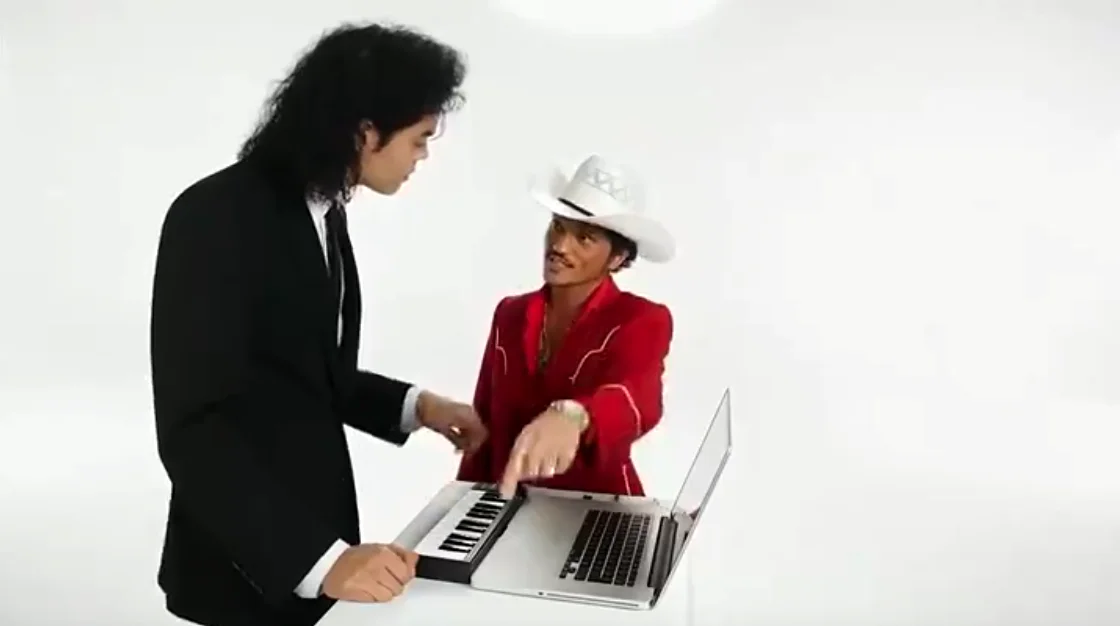
FAQ
What app makes the Alors on Danse AI video?
There's no official app or template for it. You can use a dedicated two-photo template like ours in the browser, or a general reference-to-video model where you supply the clip and the prompt yourself (Method 2).
Do I need to write a prompt?
No. In a template the prompt is already written for you, down to who does what and when. You only need a prompt if you build it yourself with a general video model.
Can I make it on my phone?
Yes. Our generator runs in the browser on a phone or a computer, with nothing to install. You can close the page while it generates and pick the clip up later in My Creations.
How many photos do I need?
Two, one per person. They don't have to be taken together.
Which photo becomes Stromae?
The first one. That person plays the keyboard at the laptop. The second photo takes Jamel's part.
Can I use cartoon or movie characters?
Yes, as long as each character has a clear front-facing picture. Famous rivalries are a favourite, since the credit-stealing joke writes itself.
Can I use myself and my partner or a friend?
Yes, that's the most common version. Any two adults work, each with a clear photo of their own.
Do I need permission to use someone's photo?
Ask your friends before you post a video of them. With famous faces, keep it obviously a joke and follow the platform's rules on AI content and impersonation; TikTok, for example, requires creators to label AI-generated content that shows realistic-looking people.
What is the song in the video?
It's "Alors on Danse" by the Belgian artist Stromae, from his first album, Cheese. Our template adds it for you, starting with the first keyboard tap.
Why does my Alors on Danse AI video have no sound?
Many video models make silent clips, or their own music that doesn't match the routine. Add the song afterwards in an editor, or as a sound on TikTok (see above).
Will TikTok mute it for copyright?
It can happen with any popular song, depending on your country and account type. Adding the song from TikTok's own sound library is the safest option, and it also puts your post on the trend's sound page.
Does the video have a watermark?
Not in our generator: the MP4 you download is clean and ready to post.
How long is an Alors on Danse AI video?
About 10 seconds in 16:9, the length and shape of the original sketch.
Can I make a longer version?
Not in one take. The routine follows the roughly 10-second clip, and stretching a single generation tends to make faces drift. For something longer, make a few takes and join them in an editor.
Why does my result look blurry?
The usual causes are a low-resolution or heavily filtered photo, or a 480p test render. Use sharper photos and re-run the take you like at 720p or 1080p.
Is the original clip a real making-of?
No. It's a scripted sketch from the Made in Jamel DVD, in which Jamel jokingly takes credit for the hit. To find it, search "Stromae Jamel Made in Jamel".
Is it free?
Your first try can be. A new account comes with some credits and a daily check-in adds a few more, so you can save up without paying. Beyond that, an Alors on Danse take at 480p is 500 credits, and if you just want one video there's a one-time Trial Pack that covers a 480p clip without a subscription.
Make your Alors on Danse AI video
That's how to make an Alors on Danse AI video. Cast the calm one on the keyboard and the loud one as the partner. Pick two sharp, front-facing photos that don't look alike. Then choose the two-photo template or the DIY route, watch out for swapped roles and blended faces, and post it with the song.
Short on time? The Alors on Danse AI video generator takes it from there: two photos in, the full Stromae Jamel AI sketch with the song out, and no subscription needed to try it. Looking for the next trend? Our AI video effects page has the rest. For another two-person routine, read how to make a Hotel Lobby AI video; to go solo, see how to do the Drake Burning Bridges trend.
Sources
- Kling Motion Control user guide: reference-clip length and the one-person limit
- Alors on danse, Wikipedia: release dates and charts
- Stromae et Jamel Debbouze pour Alors on danse, Welovebuzz: the Made in Jamel DVD
- TikTok help center: sounds
- TikTok Community Guidelines: integrity and authenticity
- TikTok video editor guide