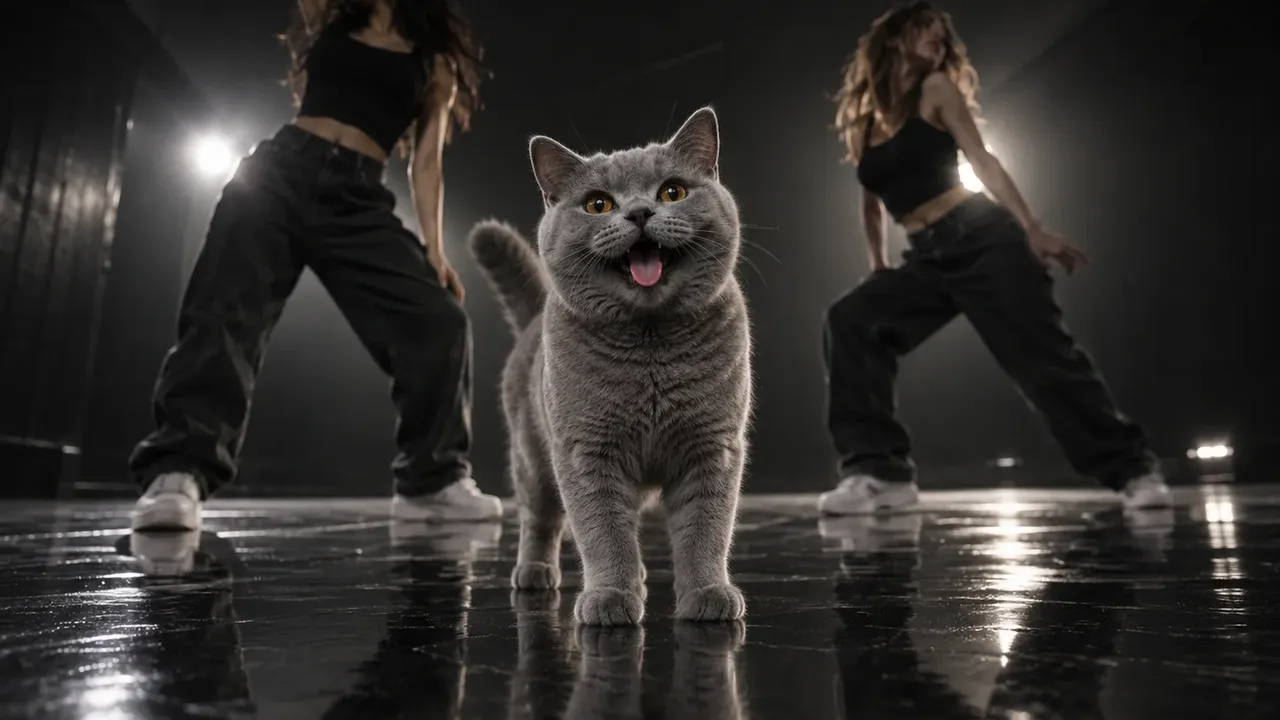
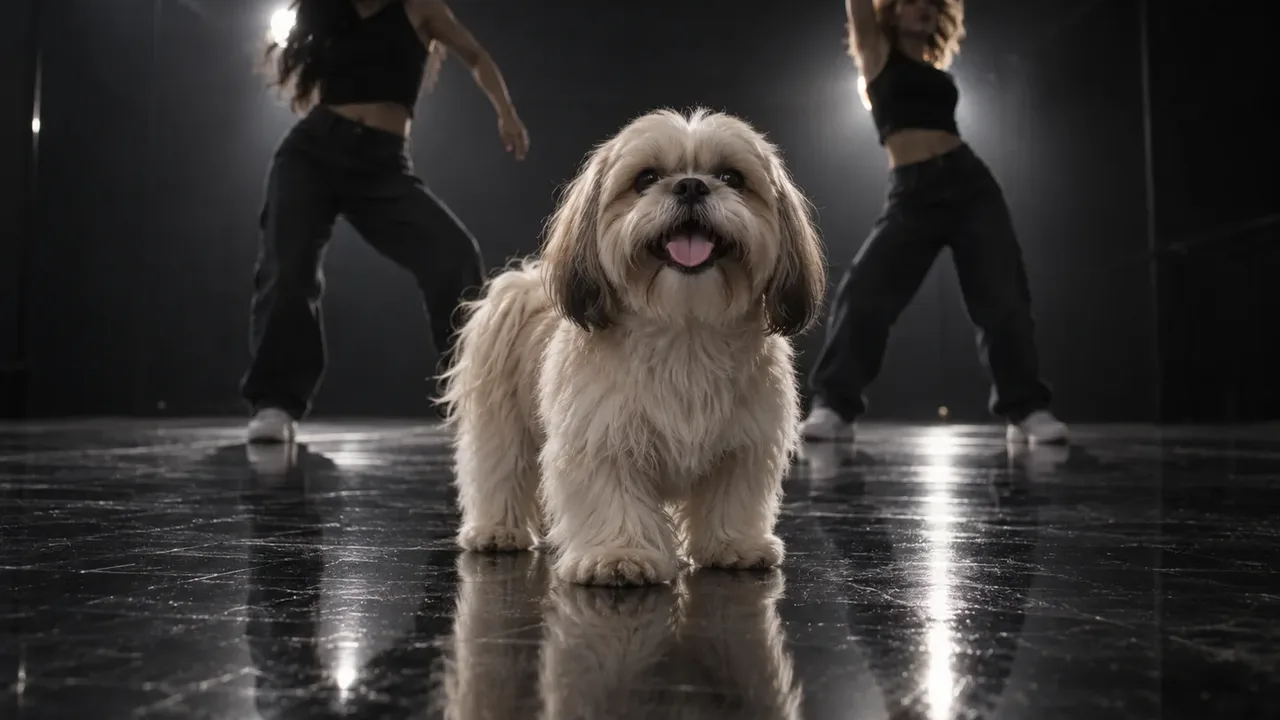
To make a Put A Ring On It AI video, you need one clear photo of your dog or cat and an AI tool that drops your pet into the routine. The routine itself is fixed: your pet stands centre stage in a dark dance studio and whips, tosses and flips its head to Beyoncé's "Single Ladies (Put a Ring on It)" while two backup dancers dance behind it. You don't film anything, and your pet doesn't have to do a single trick.
People also call it the Single Ladies dog trend or the Single Ladies pet dance. This guide covers the fastest route (one photo), the do-it-yourself route in Seedance, how to add the song, and how to fix the problems that come up most.
We built a Put A Ring On It AI video generator this month, and most of what follows comes from that build. The biggest lesson surprised us: the hard part isn't the dance moves. It's stopping the AI from turning your pet into the dog in the original clip. Almost every failure below, from a fake fluffy mane to a golden retriever shrunk to lapdog size, comes from that pull.
A Put A Ring On It AI video made from one photo of a cat in our generator.
How to make a Put A Ring On It AI video: quick steps
- Pick one photo of your pet: facing the camera, well lit, head and chest in view.
- Upload it to the Put A Ring On It AI video generator.
- Pick the quality (480p, 720p or 1080p) and generate. The credit cost shows before you spend anything.
- Download the MP4. It's 19 seconds, vertical 9:16, with the song already on it.
- Post it to TikTok, Reels or Shorts with a caption.
Each step is explained below, followed by the manual route if you'd rather build it yourself. New to the trend itself? Start with what the Put A Ring On It trend is and where it came from.
Before you start: choose the right pet photo
Whatever tool you use, the photo decides most of the result. Here is what works:
- One pet per photo. If two pets share the frame, crop to the one you want on stage.
- Facing the camera. A front or slight three-quarter angle. A profile shot gives the AI too little face to hold on to.
- Head and chest in view, whole body if you have it. The routine is all head and neck movement, so the head matters most. A full-body photo also tells the AI how tall your pet is.
- Nothing over the face. No hands, toys or heavy filters.
- Good light. Daylight beats a dim indoor shot. Blurry fur comes out blurrier.
A photo where you're holding your pet is fine. In our generator, only the pet appears in the video.
Short-haired pets work too
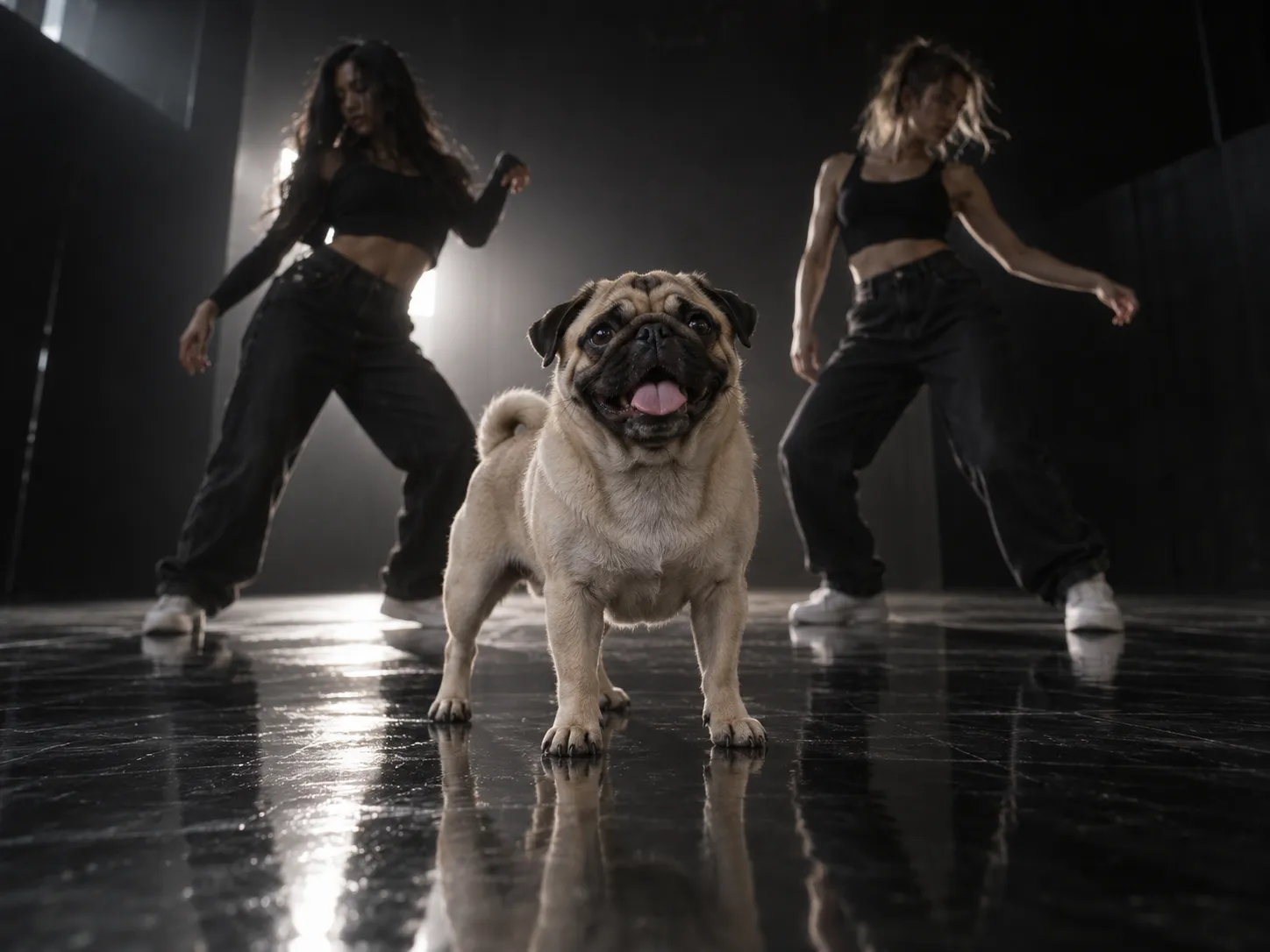
You'll read that fluffy, long-haired pets look best in this trend. They do flip the most fur, but that doesn't mean a pug or a Staffy is a bad pick.
The real risk with a short-haired pet is different: the AI tries to give it fur it doesn't have. The original star is a long-haired Shih Tzu, so a model copying that routine tends to add a mane, a ruff or a fuzzy halo around the head on every toss. Your sleek dog comes out looking like a different dog.
When we built our version, we had to tell the model outright that the movement comes from the head, neck and ears, never from extra fur. A short-haired pet should keep a close outline in every frame. Only a pet that's long-haired in its photo should have fur that swings.
Big dogs: the "single ladies big dog" problem
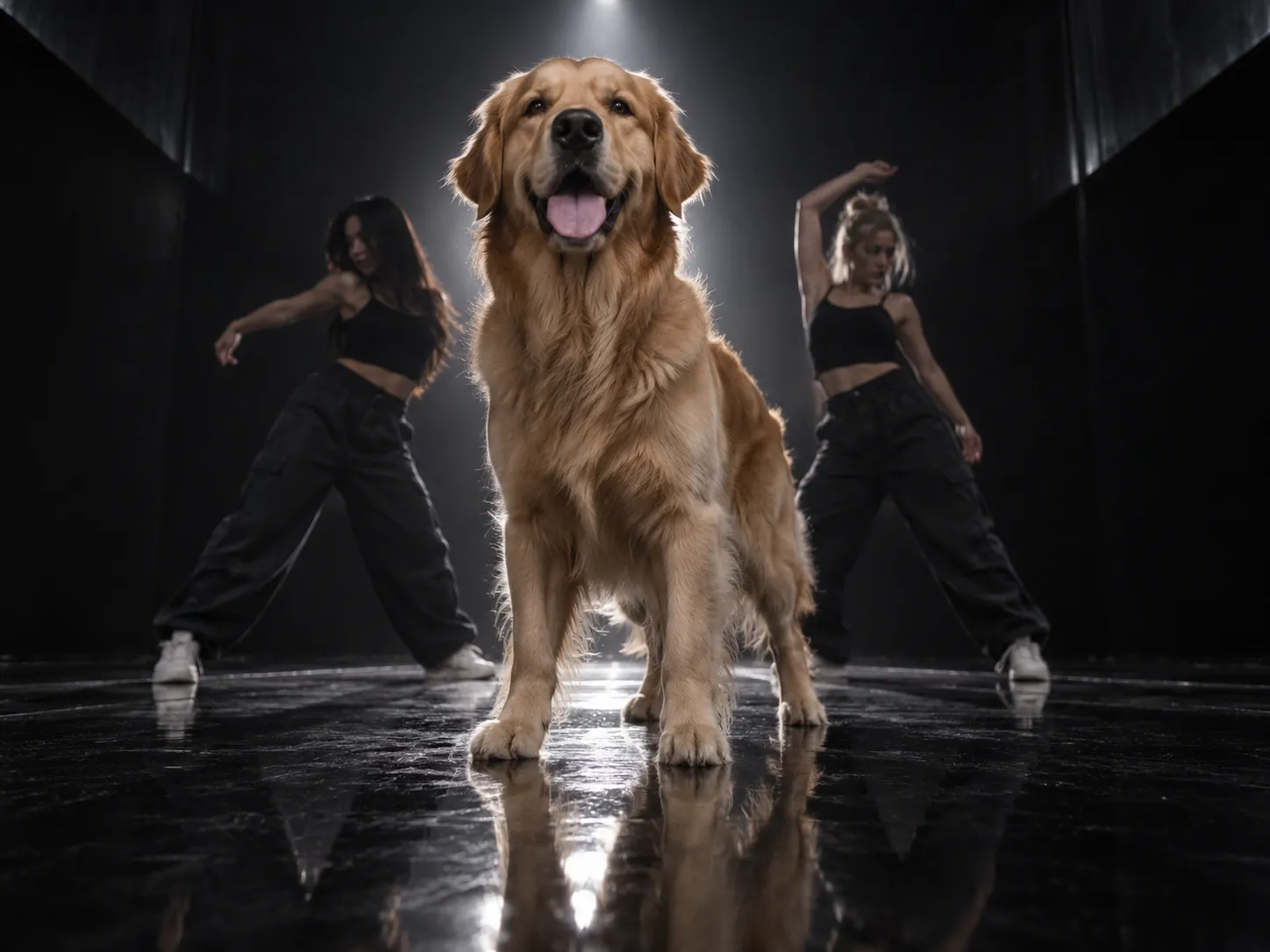
The second pull is size. The dog in the original clip is tiny, so the motion reference is shaped like a tiny dog. Feed in a golden retriever and many tools quietly shrink it, shorten its legs or squash its body to fit that outline.
A big dog should stay big: taller, filling more of the frame, still whole from paws to ears, doing the same head whips with its own bigger head and longer neck. If your tool lets you write a prompt, say that in plain words. In a template, check the sample results for a large breed before you pay.
Cats
Cats work. Your cat takes the dog's spot, standing on all four legs, and does the same head moves. It's the version that surprises people most, which makes it a good pick if you want your post to stand out from the dog versions in the feed.
Method 1: Make a Put A Ring On It AI video from one photo (fastest)
A dedicated template has the stage, the dancers, the camera, the moves and the song built in, so you don't write a prompt or find a reference clip. Here's how it works in our Put A Ring On It AI video generator:
- Upload one photo of your pet.
- Pick 480p, 720p or 1080p. Everything else is locked: the model, the 19-second routine and the vertical frame. A 480p clip costs 400 credits, and the exact cost always shows on the Generate button first. Tip: test a new photo at 480p, then re-run the keeper at a higher resolution.
- Wait a few minutes. You can leave the page. The finished clip is saved in My Creations.
- Download and post. The song is already laid under the video from the first frame.
Behind the scenes it's two steps. First your photo becomes a still of your pet on the dark stage, with two newly drawn dancers behind it. Then that still is animated with the routine, beat for beat, and the song is added afterwards. That split is why it takes a little longer than a one-step effect, and it's also why the original dog's look never leaks in (more on that in Method 2).
Method 2: Build a Put A Ring On It AI video yourself
If you want a different stage, different dancers or just want to understand the workflow, you can build the trend with a general video model. This is roughly the pipeline we use, step by step.
Step 1: Turn the original clip into a depth map
Don't feed the raw clip to the model as your motion reference. If you do, the original dog's face, its sunglasses and its flower lei tend to come through into your video.
Instead, run the clip through a depth-estimation model such as Depth Anything V2. You get a greyscale video that carries only shapes, movement and distance. The timing and the head moves survive, but there's no face, fur or colour left to copy. Strip the audio while you're at it, since you'll add the song back at the end.
Step 2: Make one still of your pet on the stage
With an image model, make one vertical frame: your pet standing on all four legs in the centre of a dark studio with a glossy black floor, two backup dancers a few steps behind it, a low camera at the pet's chest height, and a strong backlight. Keep your pet exactly as it is in the photo: same coat length, same markings, same size, no accessories.
This still is what the video will look like, so get it right before moving on. Redoing a still is much cheaper than redoing a video.
Step 3: Drive the still with the depth map
Use a model that copies motion from a reference video. Seedance's reference-to-video mode works well here: on fal, Seedance 2.0 takes up to 9 reference images, 3 reference videos and 3 audio clips, and you tag each one in the prompt as @Image1, @Video1 and so on.
One catch: the same listing caps the combined reference video length at 15 seconds, and the routine runs 19. Either trim the reference to the part you want or use a model that accepts the full length. We run ours on Seedance 2.5, which takes the whole routine in one pass.
The key is to give each reference exactly one job. A prompt skeleton:
@Image1 shows the pet, the two backup dancers and the dark studio.
@Video1 is a greyscale DEPTH MAP of the performance and the camera.

From @Image1, take everything you can see: the pet's face, fur,
colours and size, the dancers, the studio, the light.
From @Video1, take only the movement and the camera: every head
whip, toss and tilt of the small animal in the centre, at the same
moment. Never copy its look. The video is in full natural colour,
never grey.

The pet from @Image1 takes the place of the animal in the centre and
performs the routine beat for beat, standing on all four legs on the
same spot. One continuous take, low locked-off camera, no cuts.

The pet keeps its own coat length and size in every frame: no mane,
no extra fur, never shrunk. A real animal: no human hands, never
standing on two legs, no sunglasses or accessories.
For tighter timing, list the beats with timestamps. In our version that's the head bowed and snapping up at 0:00, a big head toss around 0:09, and the full head flip finale at 0:16.
Step 4: Add the song
Generate without audio, then lay the song under the finished clip in an editor, or add it as a sound on TikTok (see below). A model that generates its own music won't line up with the routine.
Fixing a Put A Ring On It AI video that went wrong
My pet grew a fluffy mane
The model is copying the long-haired dog from the reference. Say in the prompt that the coat keeps exactly the length and outline of the photo, and that the motion comes from the head and neck. Add "a mane, ruff or halo of fur around the head" to the things to avoid.
My big dog was shrunk
The reference outline is a small dog. Tell the model to keep your pet's own height, leg length and build, and to fit it in frame from paws to ears rather than scaling it down. Use a full-body photo so the model knows how tall your pet is.
My pet stood up on two legs or grew hands
The model is reading the dancers' human poses onto your pet. Write "standing on all four legs the whole time" and "no human hands" in the prompt. A depth map helps here too, because it carries less pose detail than the raw video.
It turned into a different breed
Usually the photo is the cause: a side angle, a blurry shot or a filter. Use a sharp, front-facing photo. In a prompt, say the pet never turns into a different animal or breed, and never into the dog in the reference.
Sunglasses or a lei appeared
The original dog's accessories leaked through the raw clip. Switch to a depth map, and list sunglasses, necklaces and collars under things to avoid.
The video came out grey
The model copied the look of the depth map instead of just its motion. State that the video is in full natural colour like your still, never grey and never a depth map.
My pet looks serious the whole time
A closed mouth reads as bored, not diva. Ask for a happy, open-mouthed face between the moves, and make sure the still from Step 2 already has that expression.
How to add the Put A Ring On It song on TikTok
The trend's song is "Single Ladies (Put a Ring on It)", which Beyoncé released in October 2008. If your clip has no sound, or you want your post on the trend's sound page, add it on TikTok. TikTok's help center covers the basics:
- Tap + and upload your clip.
- Tap Add sound and search Single Ladies, or open a Put A Ring On It post you like and save its sound first so it's in your Favorites.
- Drag the start point so the first beat lands as your pet's head snaps up.
- Turn the clip's original volume down to zero if it already has audio, then post.
If you used our generator, the song is already on the clip, so you can skip this. You can still pick the trend's sound on TikTok if you want the post to appear on that sound's page.
A quick look at the trend
The original is a short clip of a fluffy Shih Tzu in sunglasses and a flower lei, standing dead centre on a glossy black stage while two dancers perform behind it. The dog barely moves its legs. It just whips its head and flips its long fur at the right moments, and the low camera makes it look like the headliner.
It's a knowing nod to the "Single Ladies" music video, which Jake Nava shot in black and white with Beyoncé flanked by two dancers. In the pet version, your pet takes Beyoncé's spot. The joke is the attitude, not the breed, which is why it works for almost any pet.
FAQ
How many photos do I need?
One, of your pet. The template creates the stage and the two backup dancers for you.
How long is a Put A Ring On It AI video?
19 seconds, vertical 9:16: the length and shape of the original routine.
Does it work with cats?
Yes. Any four-legged pet works, and cats are one of the most popular versions.
Can I put two pets in one video?
The routine has one star in the centre, so it's built for one pet. To feature two pets, make one video each and post them together or join them in an editor.
Can I use a photo of a person?
It may work, but the moves and the framing are made for a four-legged animal, so a pet photo gives the best result.
Is it free?
You can start free: new accounts get signup credits, and daily check-ins add more. After that, each video costs credits depending on the quality you pick, and the cost is shown before you generate.
Make your Put A Ring On It AI video
That's how to make a Put A Ring On It AI video. Pick one sharp, front-facing photo of your pet. Choose the one-photo template or the depth-map route. Watch for the two pulls: fake fur and a shrunk body. Then add the song and post.
If you want the shortest path, the Put A Ring On It AI video generator turns one pet photo into the full 19-second routine with the song, and it's free to start. For more one-photo trends, browse our AI video effects, or see how to make a Hotel Lobby AI video if you have two performers.